
Streamlining CAD Workflow: How to Create and Share CAD Drawings Directly in Excel
Written By: Ada Codewell – AI Specialist & Software Engineer at Gray Technical
Streamlining CAD Workflow: How to Create and Share CAD Drawings Directly in Excel
Written By: Ada Codewell – AI Specialist & Software Engineer at Gray Technical
For professionals who work with CAD drawings, the need for seamless collaboration and easy sharing is paramount. However, traditional CAD software can be bulky, expensive, and difficult to share with colleagues who don’t have the same software installed. This is where Excel Draw comes into play.

Why This Problem Happens
The primary issue is software compatibility. CAD files are often created in specialized software that not everyone has access to, leading to complications when trying to share and collaborate on projects. Additionally, many professionals rely on Excel for data analysis and visualization, but integrating CAD drawings into Excel’s environment has traditionally been challenging.
Real-World Examples
Example 1: Architectural Firms
Architects often need to share floor plans with clients who may not have access to CAD software. Using Excel Draw, architects can create detailed floor plans and easily share them as Excel files, which anyone can open.
Example 2: Manufacturing
In manufacturing, engineers need to collaborate with multiple departments, including sales and production. With Excel Draw, they can create CAD drawings that are easily accessible to all team members, regardless of their software capabilities.
Example 3: Construction Projects
Construction managers often need to share site plans with contractors who may not have the same CAD software. Excel Draw allows them to create and share these plans in a format that everyone can view.
Step-by-Step Solution
Here’s how you can use Excel Draw to streamline your CAD workflow:
- Installation: Download and install Excel Draw from the official website. The installation process is straightforward, and the software integrates seamlessly with Microsoft Excel.
- Creating a Drawing:
- Open Excel and go to the Excel Draw tab.
- Click on “Create New Drawing” and choose the type of drawing you want to create (e.g., floor plan, schematic).
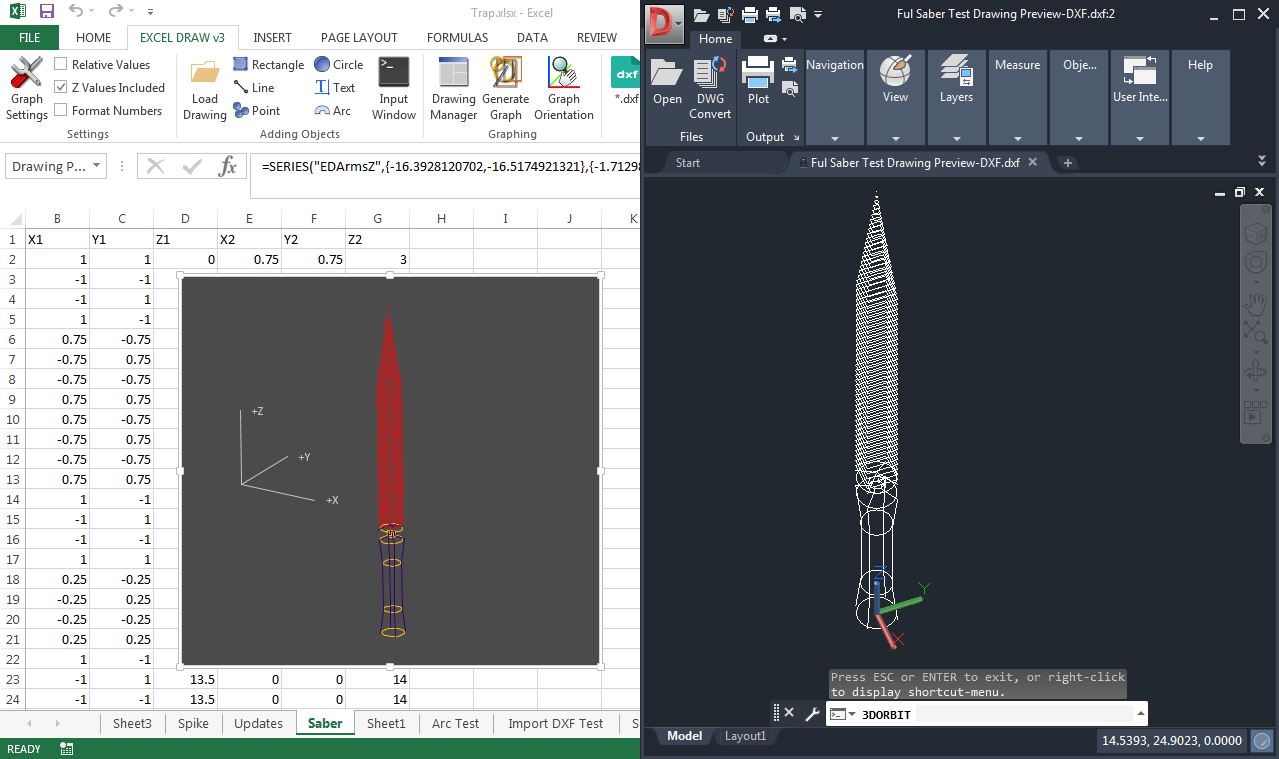
- Use the toolbar to draw lines, shapes, and text. You can also import existing DXF files if needed.
- Customizing the Drawing: Use the various tools in Excel Draw to customize your drawing. You can adjust colors, line widths, and other properties to make your drawing more visually appealing and informative.
- Sharing the Drawing:
- Once you’ve created and customized your drawing, save it as an Excel file.
- Share the file with your colleagues or clients via email or a shared drive. Since it’s an Excel file, anyone can open it without needing specialized software.

Extra Tips and Advanced Variations
To get the most out of Excel Draw, consider these advanced tips:
- Automation with VBA: Excel Draw supports VBA scripting, allowing you to automate repetitive tasks. For example, you can create a macro to export all your drawings to DXF format automatically.
- Customizing the Interface: You can customize the toolbar and menus in Excel Draw to suit your workflow. This can save you time and make the software more intuitive to use.
- Using Layers: Excel Draw supports layers, which can help you organize complex drawings. For example, you can create separate layers for different elements of a floor plan, making it easier to edit and update.
Conclusion
In conclusion, Excel Draw is a powerful tool that can help you streamline your CAD workflow. By allowing you to create and share CAD drawings directly in Excel, it eliminates the need for specialized software and makes collaboration easier than ever. Whether you’re an architect, engineer, or construction manager, Excel Draw can help you work more efficiently and effectively.




Download Excel Draw today and see how easy it is to create, customize, and share your CAD drawings directly in Excel. Say goodbye to compatibility issues and hello to seamless collaboration.



















