
Transform Your Spreadsheets: Create CAD Drawings Directly in Excel
Written By: Ada Codewell – AI Specialist & Software Engineer at Gray Technical
Transform Your Spreadsheets: Create CAD Drawings Directly in Excel
If you work with technical drawings and need to collaborate with colleagues or clients who don’t have CAD software, Excel Draw is your solution. This powerful add-in allows you to create, view, and export CAD-style DXF drawings directly within Microsoft Excel. No AutoCAD required!




Why You Struggle with CAD and Spreadsheets
Many professionals face the challenge of creating technical drawings that can be easily shared and viewed by others who don’t have access to expensive CAD software. This often leads to compatibility issues, version control problems, and wasted time trying to convert files between different formats.
How Excel Draw Solves This Problem
Excel Draw bridges the gap between CAD and spreadsheet applications. It allows you to create professional-grade technical drawings directly in Excel, ensuring that anyone with Excel can view your work without needing additional software.
Step-by-Step Solution
Follow these steps to start creating CAD drawings in Excel:
- Download and Install Excel Draw: Visit the Excel Draw website and download the trial version. Follow the installation instructions provided.
- Launch Excel and Open Excel Draw: After installation, open Excel and you’ll see the Excel Draw tab in the ribbon.
- Create a New Drawing: Click on “New Drawing” in the Excel Draw tab. This will create a new sheet with a drawing area.
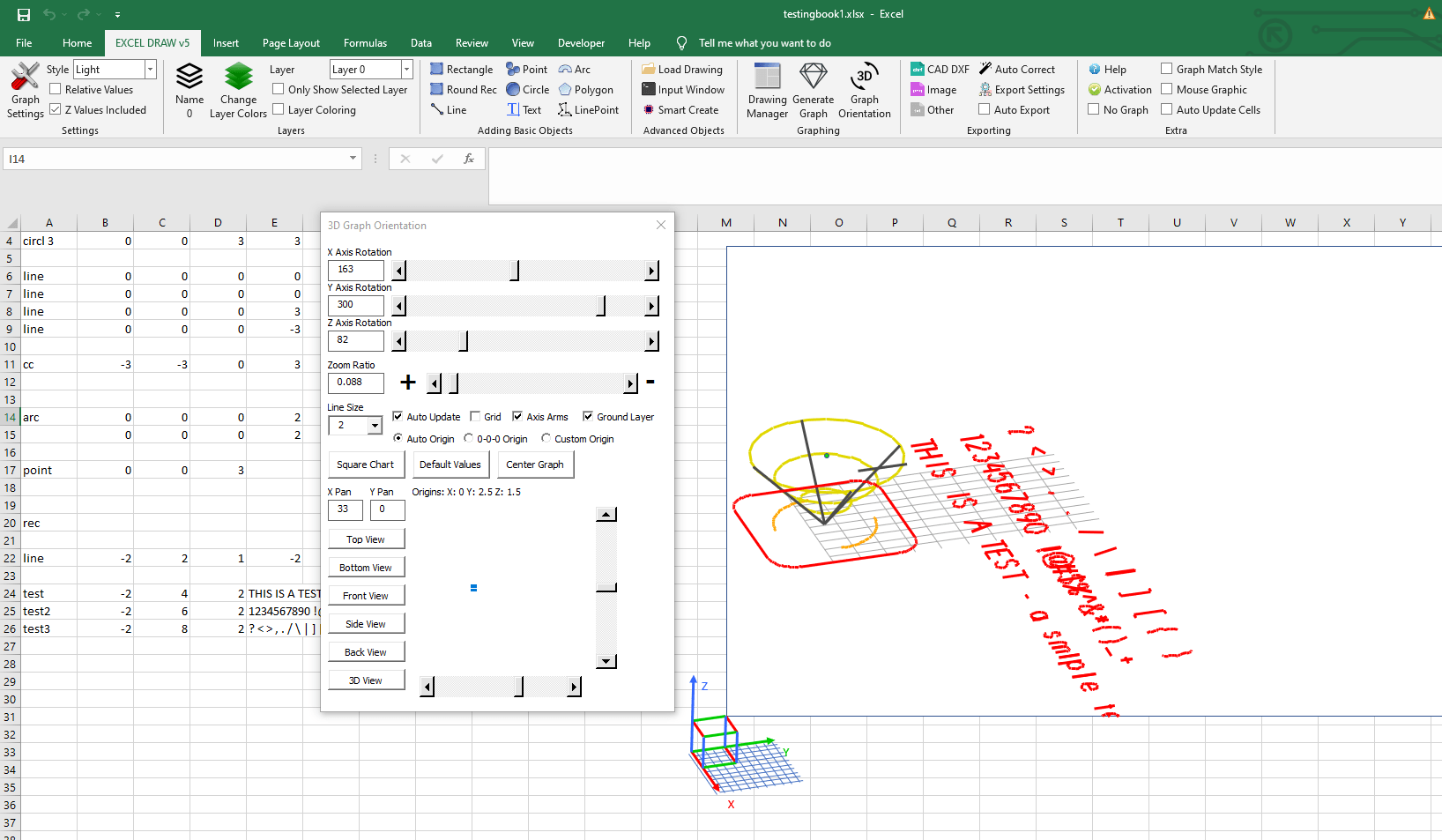
- Add Objects to Your Drawing: Use the toolbar to add shapes like lines, rectangles, circles, and text. You can also import DXF files or enter XYZ coordinates directly into Excel cells.
- Customize Your Drawing: Adjust colors, line widths, and other properties to suit your needs. Excel Draw offers extensive customization options to help you create professional-looking drawings.
- Export Your Drawing: Once you’re satisfied with your drawing, export it in various formats like DXF, PDF, or image files. This makes it easy to share your work with colleagues and clients.

Real-World Examples
Let’s look at three real-world scenarios where Excel Draw can be a game-changer:
Example 1: Architectural Floor Plans
Architects often need to create detailed floor plans and share them with clients who may not have CAD software. With Excel Draw, architects can create precise floor plans directly in Excel and export them as PDFs or images for easy sharing.
Example 2: Engineering Schematics
Engineers frequently work with complex schematics that need to be reviewed by team members who may not have access to CAD software. By using Excel Draw, engineers can create and share schematics in a format that anyone with Excel can view and annotate.
Example 3: Manufacturing Blueprints
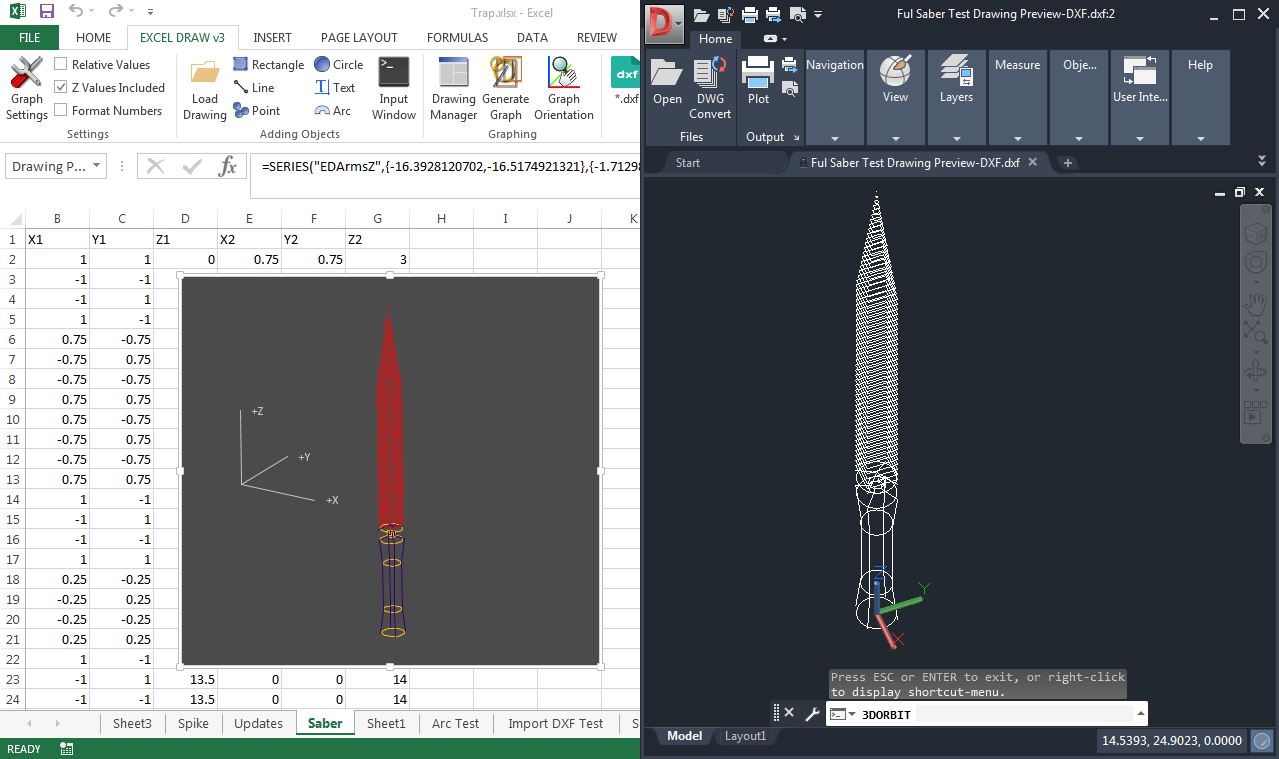
In manufacturing, blueprints are essential for producing parts and assemblies. With Excel Draw, manufacturers can create detailed blueprints in Excel and export them to DXF format for use in CNC machines or other manufacturing equipment.
Advanced Tips and Automation
One of the standout features of Excel Draw is its support for VBA automation. This allows you to create custom processes for generating, graphing, and exporting your drawings. Here are a few advanced tips:
- Automate Drawing Creation: Use VBA to automate the creation of recurring drawing templates. This saves time and ensures consistency across multiple projects.
- Custom Export Formats: Write VBA scripts to export drawings in specific formats or send them directly to printers or other devices.
- Dynamic Updates: Automatically update your drawings in real-time as you modify the underlying data in Excel. This is particularly useful for dynamic projects where changes are frequent.
Conclusion
Excel Draw is a powerful tool that brings the capabilities of CAD software directly into Microsoft Excel. Whether you’re an architect, engineer, or manufacturer, this add-in can save you time, reduce costs, and improve collaboration. Try it out today and experience the convenience of creating and sharing professional-grade technical drawings without the need for expensive CAD software.
Written By: Ada Codewell – AI Specialist & Software Engineer



















