
Transform Your CAD Workflow: Create and Manage Drawings Directly in Excel
Written By: Ada Codewell – AI Specialist & Software Engineer at Gray Technical
Transform Your CAD Workflow: Create and Manage Drawings Directly in Excel
Are you tired of switching between multiple software applications to create and manage technical drawings? Imagine if you could do all your CAD work directly inside Microsoft Excel. With Excel Draw, you can transform the way you handle technical and engineering drawings. No more need for AutoCAD or other specialized software—Excel Draw integrates seamlessly with Excel, making it easier than ever to create, view, and share CAD drawings.




Why This Problem Happens
Many professionals face challenges when working with technical drawings due to the need for specialized software. AutoCAD and other CAD programs can be expensive, complex, and require extensive training. Additionally, sharing drawings with colleagues or clients who don’t have access to these specialized tools can be a hassle. This often leads to inefficiencies, increased costs, and delays in projects.
Step-by-Step Solution
Excel Draw provides a comprehensive solution for creating and managing CAD drawings directly within Excel. Here’s how you can use it to streamline your workflow:
1. Installation and Setup
First, download and install Excel Draw from the official website. The installation process is straightforward and includes a trial version for you to test its capabilities.
2. Creating Your First Drawing
Open Excel and navigate to the Excel Draw tab on the ribbon. You can start by creating basic shapes like rectangles, circles, or lines. For example, select the rectangle tool from the toolbar and draw a shape directly on your Excel sheet.

3. Importing DXF Files
If you have existing CAD files, you can easily import them into Excel Draw. Use the “Load DXF” feature to bring in your drawings. This is particularly useful for continuing work on projects that were started in other CAD software.
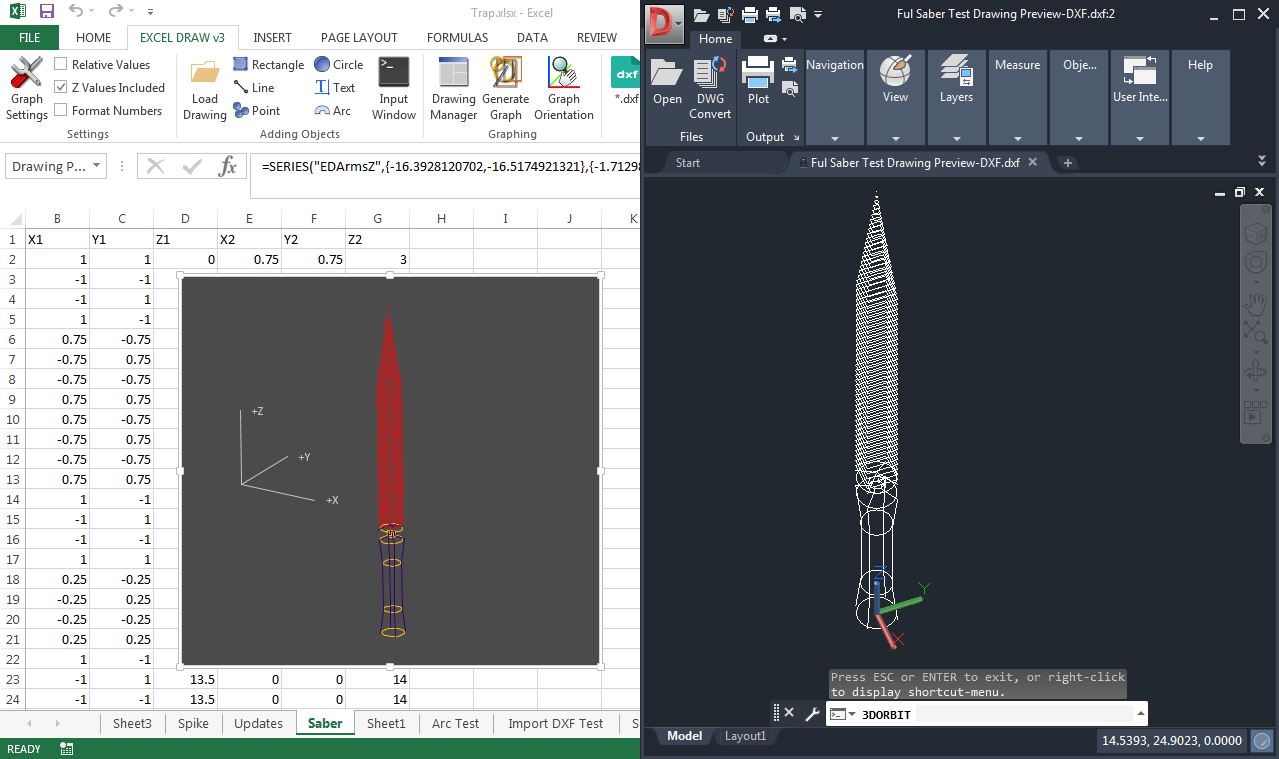
4. Customizing Your Drawings
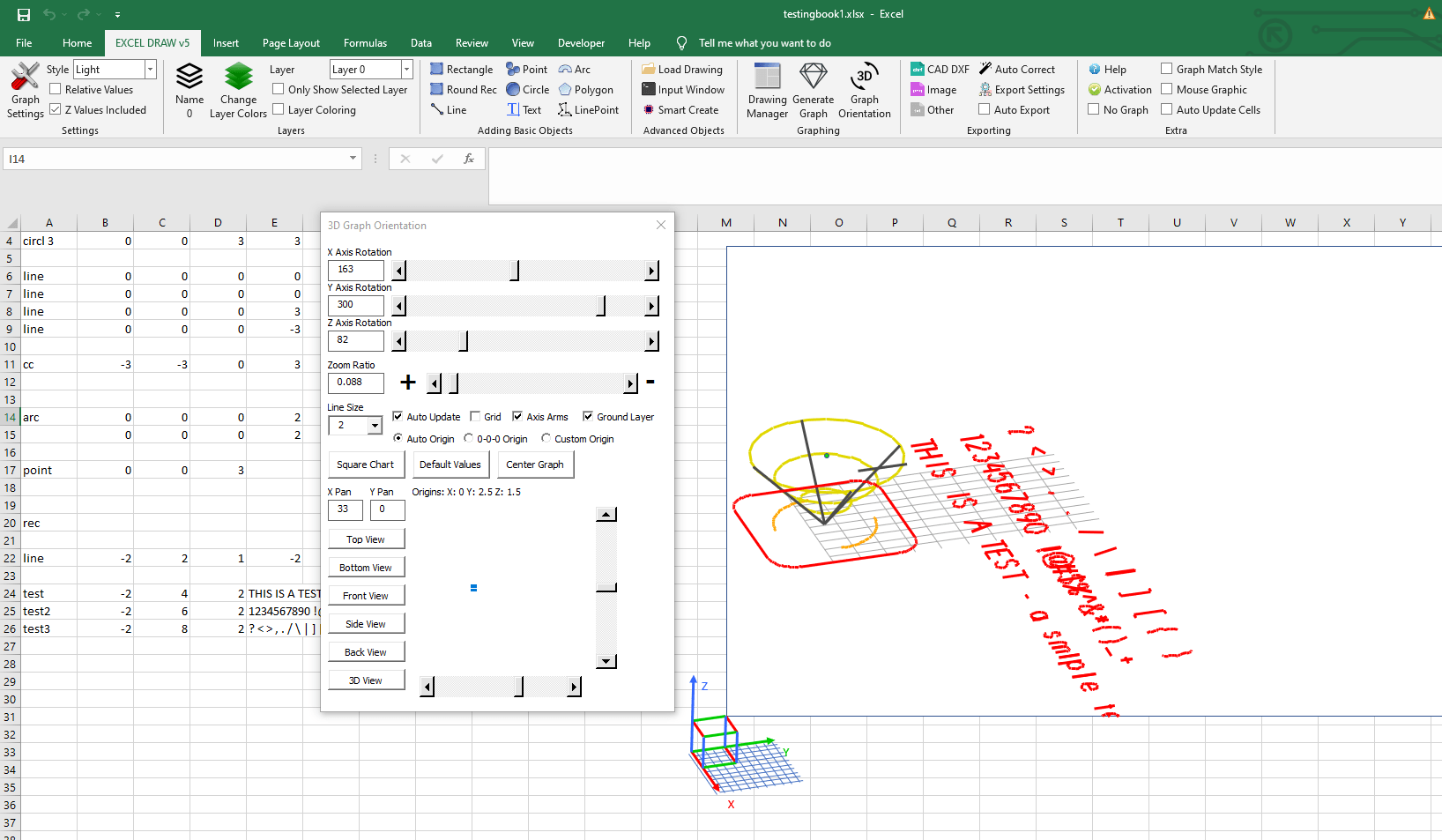
One of the powerful features of Excel Draw is its customization options. You can adjust colors, line widths, and even set up different layers for your drawing. This allows you to organize complex drawings more effectively.

5. Exporting and Sharing
Once you’ve created or edited your drawing, exporting it is simple. Excel Draw supports various formats including DXF, PDF, JPG, and more. This means you can share your drawings with anyone without them needing specialized software to view them.
Real-World Examples
Example 1: Architectural Floor Plans
Architects often need to create detailed floor plans that can be shared with clients and contractors. With Excel Draw, architects can create these plans directly in Excel and easily share them with stakeholders who may not have access to AutoCAD.
Example 2: Engineering Schematics
Engineers working on mechanical or electrical schematics can benefit from using Excel Draw. The ability to automate tasks using VBA means that repetitive drawing tasks can be streamlined, saving time and reducing errors.
Example 3: Construction Site Layouts
Construction project managers can use Excel Draw to create site layouts and share them with their team. The ease of exporting to PDF or image formats makes it simple to distribute these drawings to field workers who may not have access to CAD software.
Advanced Tips and Tricks
Excel Draw isn’t just for beginners; it has advanced features that can enhance your productivity:
Automating with VBA
For those familiar with VBA (Visual Basic for Applications), Excel Draw offers extensive automation capabilities. You can write scripts to automate repetitive tasks, generate drawings from data, and even export drawings directly to CNC machines.
Customizing the Interface
Excel Draw allows you to customize the interface to suit your preferences. You can switch between classic, light, or dark themes and adjust object/chart colors to match your workflow.
Conclusion
Excel Draw is a game-changer for anyone involved in technical and engineering drawings. By integrating CAD capabilities directly into Excel, it eliminates the need for expensive and complex software like AutoCAD. Whether you’re an architect, engineer, or construction project manager, Excel Draw can streamline your workflow and save you valuable time and resources.
Ready to transform your CAD workflow? Try Excel Draw today and experience the difference for yourself. Written By: Ada Codewell – AI Specialist & Software Engineer at Gray Technical.



















