
Streamline Your CAD Workflow: Create & Edit DXF Files Directly in Excel
Written By: Ada Codewell – AI Specialist & Software Engineer at Gray Technical
Streamline Your CAD Workflow: Create & Edit DXF Files Directly in Excel
Are you tired of juggling multiple software applications to create and view CAD drawings? If you’re a professional who needs to incorporate CAD-style drawings into Excel, you’ll know the struggle. But there’s a solution that can transform your workflow: Excel Draw. This tool allows you to create, view, and export CAD drawings all within Microsoft Excel.




Why This Problem Happens
Traditional CAD workflows often require switching between different software applications, which can be time-consuming and inefficient. Many professionals need to create or view CAD drawings within Excel for documentation, presentations, or further analysis. Without a streamlined solution, this process becomes cumbersome and prone to errors.
Step-by-Step Solution with Excel Draw
1. Installing Excel Draw
The first step is to install Excel Draw. Once installed, it integrates seamlessly into the Excel ribbon. This allows you to access all of its features directly from within Excel.

2. Creating a New CAD Drawing
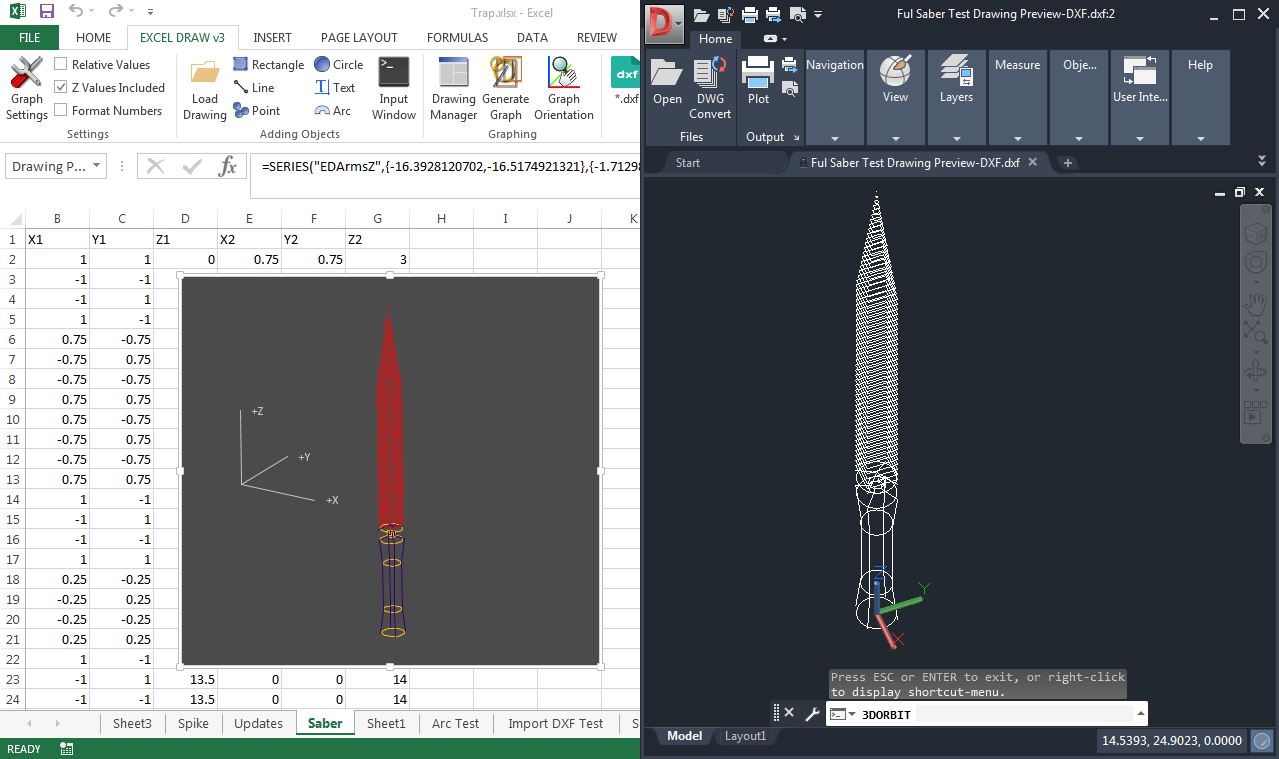
To create a new CAD drawing, click on the “Insert” tab in Excel Draw and select the type of object you want to add—lines, rectangles, circles, text, etc. You can input your data directly into Excel cells or use the command line input window for more precise control.
3. Customizing Your Drawing
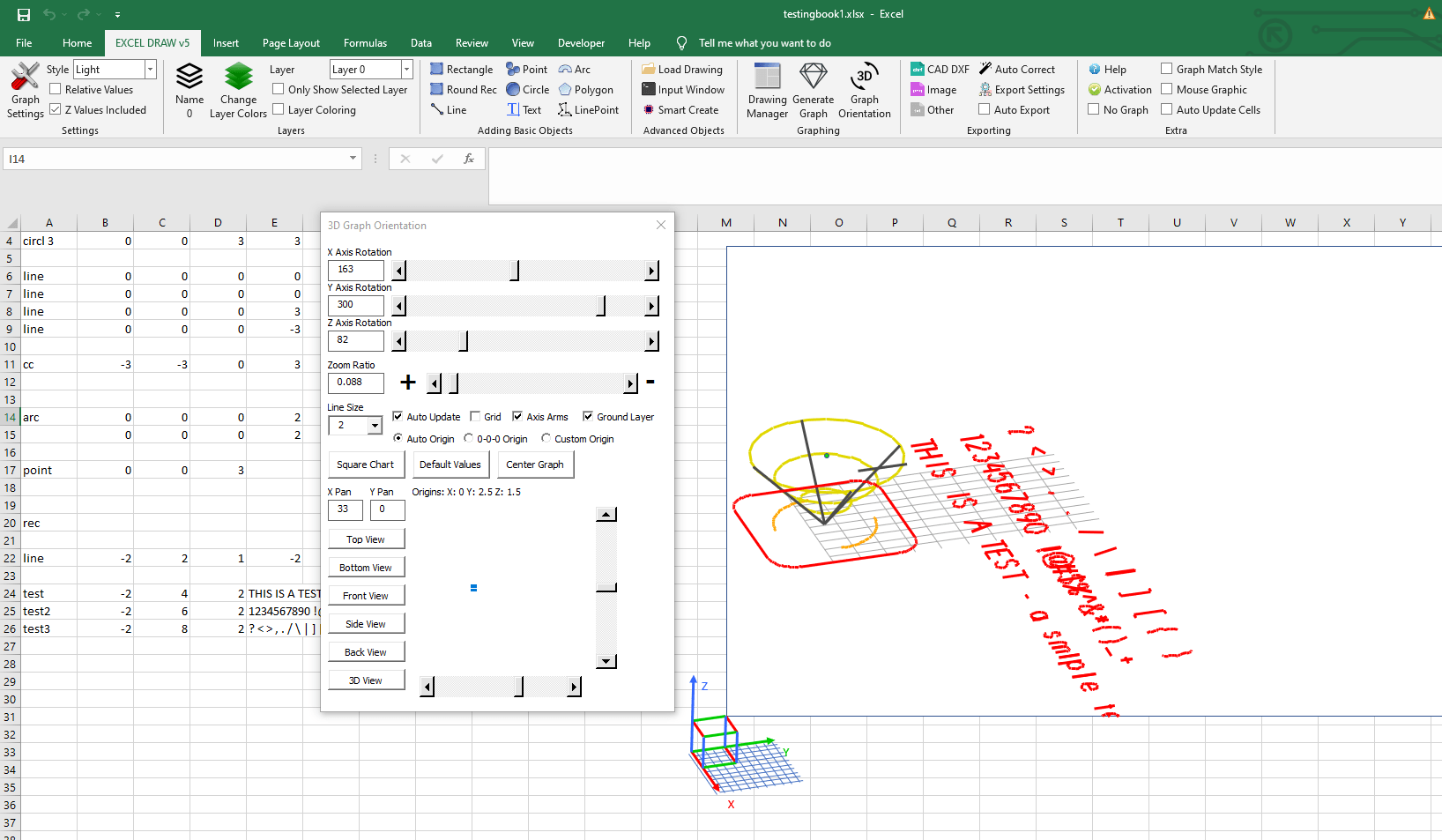
Excel Draw allows you to customize every aspect of your drawing, from colors and line widths to object properties. You can also organize your objects using the built-in Drawing Manager, which helps you select, modify, or delete objects as needed.
4. Exporting Your Drawing
Once your drawing is complete, exporting it is straightforward. You can export in various formats, including DXF, PDF, JPG, and more. This makes sharing your work with colleagues or clients extremely easy.

5. Real-World Examples
Here are a few real-world scenarios where Excel Draw can be a game-changer:
- Architectural Floor Plans: Architects often need to incorporate floor plans into Excel for project proposals or client presentations. With Excel Draw, you can create detailed floor plans directly in Excel and share them with clients without needing additional software.
- Engineering Schematics: Engineers working on complex projects can use Excel Draw to create and edit engineering schematics. The integration with VBA allows for automation of repetitive tasks, saving time and reducing errors.
- Manufacturing Blueprints: For manufacturing, CAD drawings are essential for machine operations and quality control. With Excel Draw, you can easily create and share these blueprints with your team.
Extra Tip: Automate Your Workflow with VBA
One of the most powerful features of Excel Draw is its integration with VBA. This allows you to automate the creation and modification of your CAD drawings. Whether you need to generate multiple variations of a drawing or export data to other systems, VBA can handle it.
Conclusion
Excel Draw is a game-changer for professionals who need to integrate CAD drawings into Excel. By streamlining your workflow and eliminating the need for multiple software applications, you can save time, reduce errors, and increase productivity. Try it today and experience the difference!
Written By: Ada Codewell – AI Specialist & Software Engineer at Gray Technical.



















