
Simplifying CAD Design: How to Create and Share Technical Drawings Directly in Excel
Written By: Ada Codewell – AI Specialist & Software Engineer at Gray Technical
Simplifying CAD Design: How to Create and Share Technical Drawings Directly in Excel
As a professional engineer or designer, you often need to create precise technical drawings for projects. But what if you could streamline this process by creating and sharing CAD drawings directly within Microsoft Excel? This article will guide you through using Excel Draw to transform your Excel spreadsheets into powerful CAD design tools. Let’s dive in!




The Problem with Traditional CAD Design
Creating technical drawings often involves multiple software applications, complex file conversions, and the need for specialized CAD skills. This can be time-consuming and frustrating, especially when you just want to create a simple drawing or diagram.
Why Use Excel for CAD Design?
Excel is already a familiar tool for many professionals, offering a user-friendly interface and powerful data manipulation capabilities. By integrating CAD design into Excel with Excel Draw, you can simplify your workflow and increase productivity. Plus, anyone with Excel can view your drawings without needing additional software.
Step-by-Step Solution: Creating CAD Drawings in Excel
1. Installing Excel Draw
First, download and install Excel Draw from the official website. The installation process is straightforward, and once installed, you’ll see a new tab in your Excel ribbon.
2. Opening and Creating Drawings
To create a new drawing, simply click on the Excel Draw tab and select “New Drawing.” You can also open existing DXF files by selecting “Open Drawing” and navigating to your file.
3. Adding Objects to Your Drawing
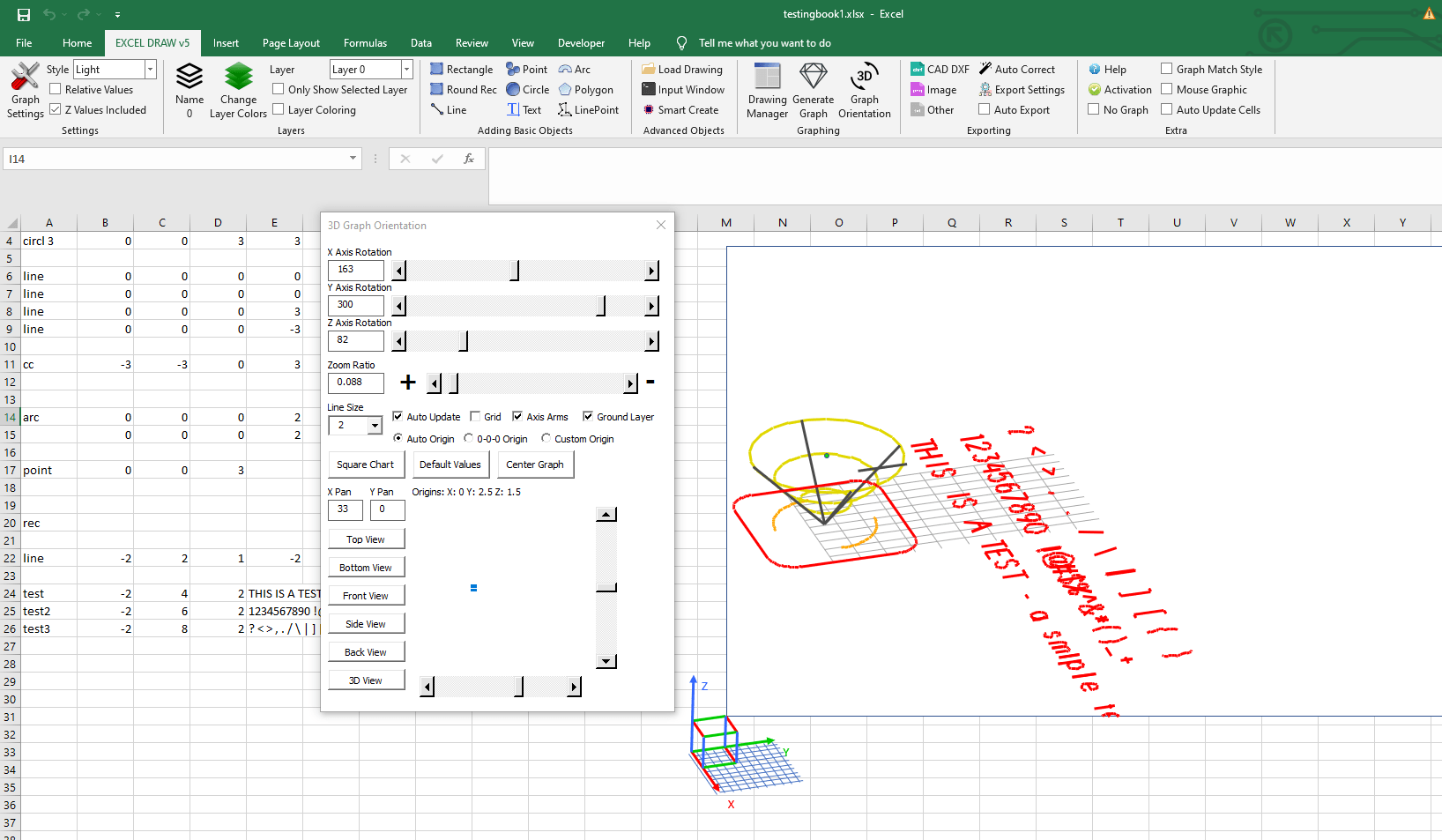
With Excel Draw, you can add various objects such as lines, rectangles, circles, arcs, polygons, and text. To add an object, select the desired tool from the toolbar and click on the drawing area to place it. You can then customize its properties like color, line width, and position.

4. Managing and Organizing Your Drawing
The Drawing Manager in Excel Draw allows you to easily manage and organize your objects. You can select, modify, or delete objects as needed. Additionally, the Distance Calculator tool helps you measure distances between objects for precise design work.
5. Exporting and Sharing Your Drawings
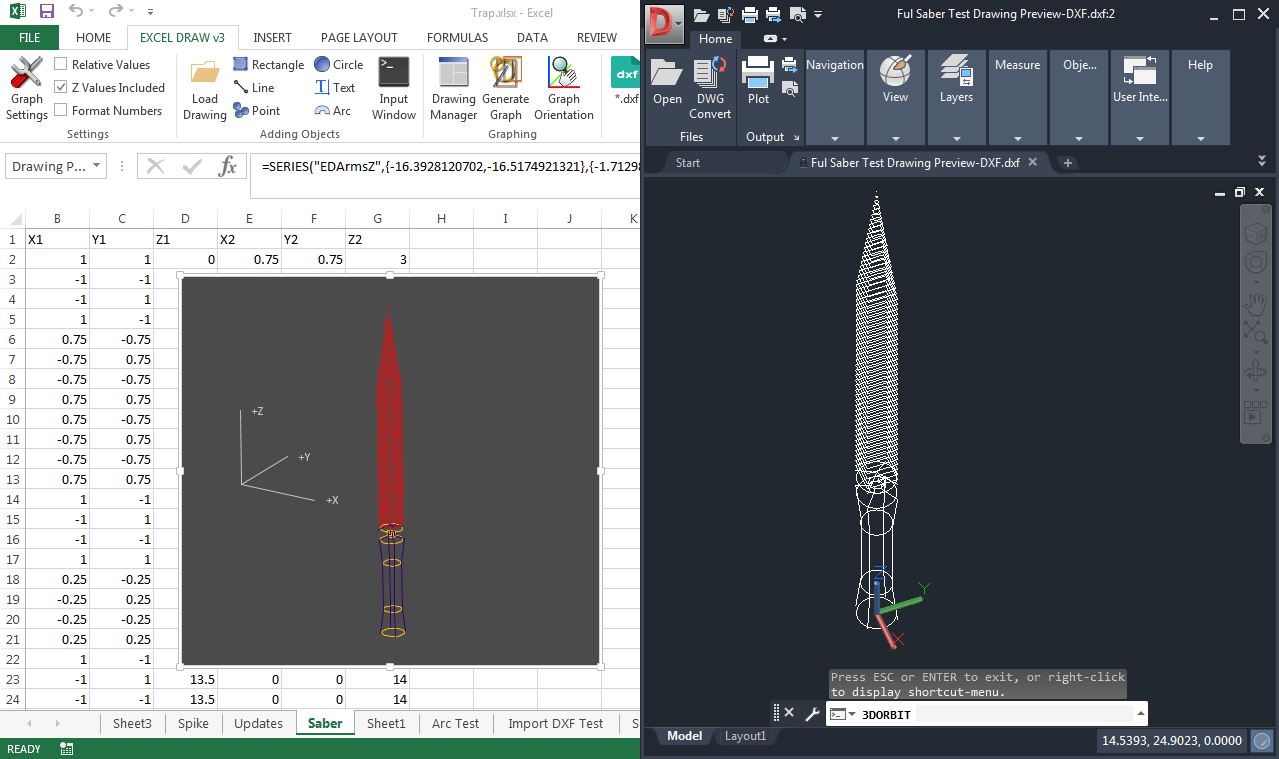
Once your drawing is complete, you can export it in various formats such as DXF, PDF, JPG, or even HTML. This makes it easy to share your designs with colleagues or clients who may not have Excel Draw installed.
6. Automating Your Workflow with VBA
For advanced users, Excel Draw offers VBA automation capabilities. You can create custom macros to automate repetitive tasks, such as generating drawings from data or exporting multiple files at once.
Real-World Examples of Excel Draw in Action
Example 1: Architectural Floor Plans
Architects can use Excel Draw to create detailed floor plans and share them with clients or contractors. The ability to view these drawings in Excel ensures that everyone involved can easily access and understand the design.
Example 2: Engineering Schematics
Engineers can create complex schematics and technical drawings directly in Excel. With Excel Draw, they can easily update dimensions, add annotations, and share their work with team members.
Example 3: Product Design Mockups
Product designers can create mockups and prototypes using Excel Draw. The integration with Excel allows for easy data manipulation and quick iterations on designs.
Tips for Getting the Most Out of Excel Draw
1. **Customize Your Workspace:** Adjust the toolbar settings to suit your workflow preferences. You can change the default colors, line widths, and other properties to match your design standards.
2. **Leverage VBA Automation:** If you find yourself performing repetitive tasks, consider creating custom macros to streamline your workflow. Excel Draw’s VBA API offers extensive automation capabilities.
3. **Use the Distance Calculator:** This tool is invaluable for ensuring precision in your designs. You can measure distances between objects and label them directly on your drawing.
4. **Export in Multiple Formats:** Don’t limit yourself to DXF files. Excel Draw allows you to export your drawings as PDFs, images, or even HTML documents, making it easy to share your work with anyone.

Conclusion
Creating and sharing technical drawings doesn’t have to be a complex, time-consuming process. With Excel Draw, you can transform your Excel spreadsheets into powerful CAD design tools. Whether you’re an architect, engineer, or product designer, Excel Draw offers a streamlined solution for creating precise, professional drawings directly within Excel.
Ready to simplify your design workflow? Try Excel Draw today and experience the difference for yourself!
Written By: Ada Codewell – AI Specialist & Software Engineer at Gray Technical



















