
Simplify Your CAD Workflow: Create and Share Technical Drawings Directly in Excel
Written By: Ada Codewell – AI Specialist & Software Engineer at Gray Technical
Simplify Your CAD Workflow: Create and Share Technical Drawings Directly in Excel
As a professional in fields like engineering, architecture, or technical design, you’ve likely struggled with integrating your CAD drawings into collaborative workflows. Traditional CAD software can be complex and incompatible with other tools, making it challenging to share designs with team members who don’t use CAD programs. Excel Draw offers a straightforward solution by enabling you to create, view, and export CAD-style drawings directly within Excel.




Why This Problem Happens
Many technical professionals face the challenge of working with CAD software that lacks seamless integration with other commonly used tools like Excel. This disjointed workflow leads to inefficiencies, as team members often need to convert files or use multiple applications to view and edit drawings. Additionally, not all colleagues have access to specialized CAD software, creating barriers to collaboration.
Step-by-Step Solution
Excel Draw offers a comprehensive solution by turning Excel into a powerful CAD tool. Here’s how you can simplify your workflow:
1. Install and Activate Excel Draw
First, download and install Excel Draw from the official website. Once installed, activate your license by following the on-screen prompts.

2. Create Your First Drawing
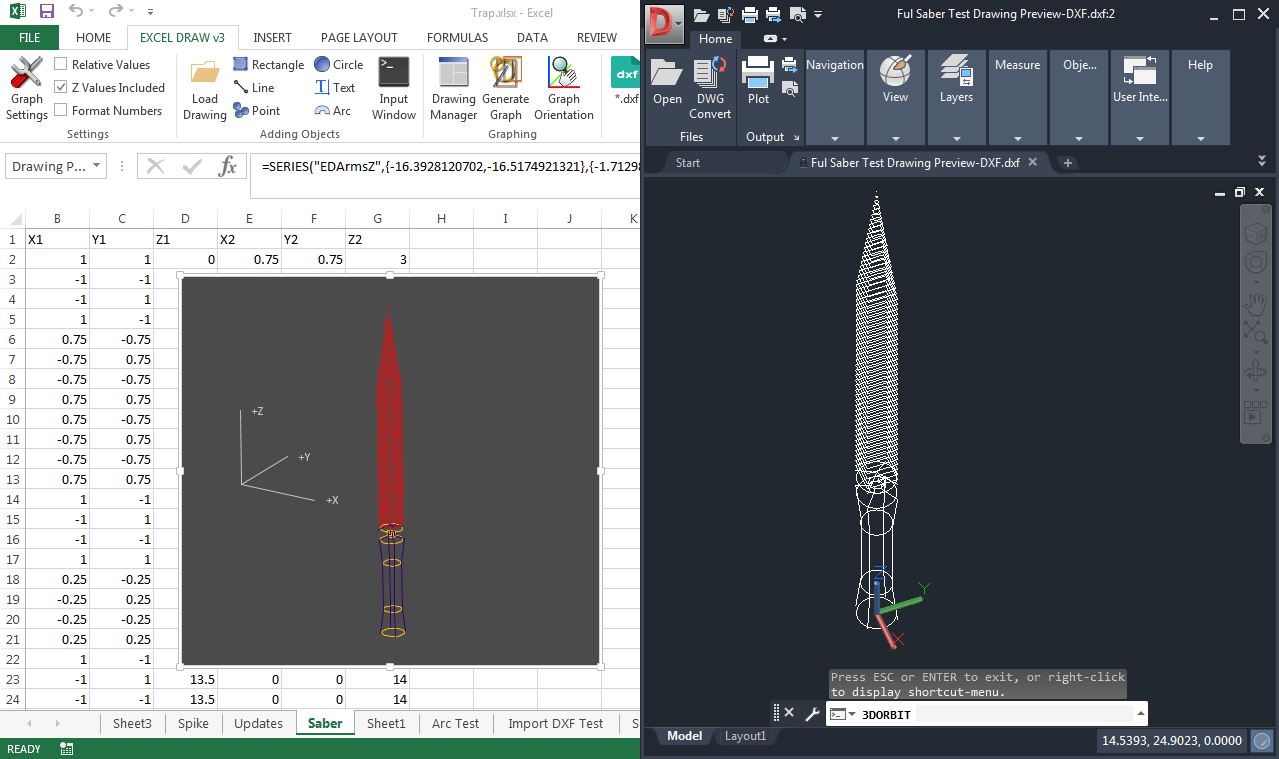
Open Excel and navigate to the Excel Draw tab. You’ll see various drawing tools like lines, rectangles, circles, and text. Select your desired tool and start creating shapes by clicking and dragging on the worksheet.

3. Import Existing DXF Files
If you have existing CAD drawings in DXF format, you can import them directly into Excel Draw. Use the built-in DXF Reader GT to open and load your DXF files, making it easy to work with pre-existing designs.
4. Customize Your Drawings
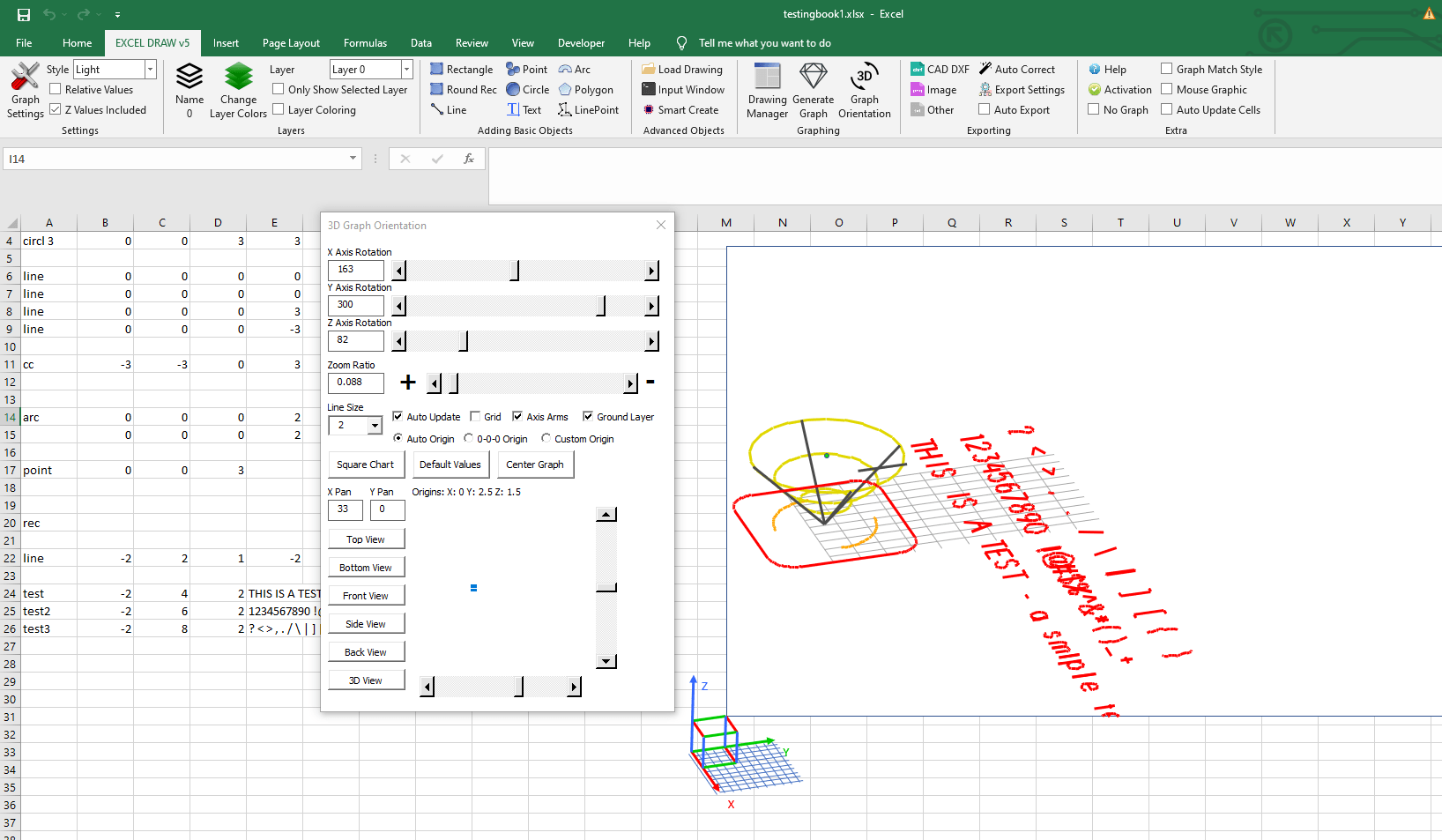
Excel Draw allows you to customize every aspect of your drawings, from colors and line widths to object layers. This flexibility ensures that your designs meet your exact specifications.
5. Export and Share Your Drawings
Once your drawing is complete, you can export it in various formats, including DXF, PDF, PNG, JPG, and more. This makes it easy to share your designs with colleagues who may not have Excel Draw installed.
6. Automate Your Workflow with VBA
For advanced users, Excel Draw supports VBA automation. You can create custom macros to streamline repetitive tasks, such as exporting drawings or generating reports.

7. Collaborate Seamlessly
With Excel Draw, anyone with access to Excel can view your drawings without needing specialized CAD software. This makes it easy to collaborate with team members across different departments or organizations.
Real-World Examples
Example 1: Architectural Floor Plans
Architects often need to share floor plans with clients and contractors who may not have CAD software. By creating floor plans in Excel Draw, architects can easily export their designs as PDFs or images, ensuring that everyone can view the plans without any compatibility issues.
Example 2: Engineering Schematics
Engineers working on complex projects can use Excel Draw to create and share schematics with team members. The ability to export drawings in various formats makes it easy to integrate the schematics into project documentation and presentations.
Example 3: Manufacturing Blueprints
Manufacturers can use Excel Draw to create detailed blueprints that can be easily shared with production teams. The tool’s compatibility with DXF files ensures that the blueprints can be used directly in CNC machines, streamlining the manufacturing process.
Conclusion
Excel Draw is a game-changer for professionals who need to integrate CAD drawings into their Excel workflows. By turning Excel into a powerful CAD tool, Excel Draw eliminates the need for specialized software and makes it easy to share designs with colleagues and clients. Whether you’re an architect, engineer, or designer, Excel Draw offers a seamless solution to streamline your technical drawing process.
Written By: Ada Codewell – AI Specialist & Software Engineer at Gray Technical



















