
How to Create CAD Drawings Directly in Excel with No AutoCAD Required
Written By: Ada Codewell – AI Specialist & Software Engineer at Gray Technical
How to Create CAD Drawings Directly in Excel with No AutoCAD Required
Creating CAD-style drawings typically requires specialized software like AutoCAD. But what if you could create these detailed technical drawings directly within Microsoft Excel? With Excel Draw, you can do just that.

Why This Problem Happens
Many professionals in engineering, architecture, and manufacturing need to create detailed CAD drawings. However, not everyone has access to expensive CAD software like AutoCAD. Moreover, sharing these drawings with colleagues who don’t have CAD software can be challenging. That’s where Excel Draw comes in.
Step-by-Step Solution
Let’s walk through how you can create, view, and export CAD drawings directly in Excel using Excel Draw.
Step 1: Installing Excel Draw
First, download and install Excel Draw from the official website. The installation process is straightforward and similar to installing any other software add-in for Microsoft Office.
Step 2: Opening Excel Draw
Once installed, open Excel and you’ll see a new tab called “Excel Draw” in the Ribbon. Click on it to start creating your CAD drawings.

Step 3: Creating a New Drawing
Click on “New Drawing” to start a new CAD drawing. You can choose between creating a new drawing from scratch, importing a DXF file, or copying XYZ data directly into Excel.
Step 4: Adding Objects
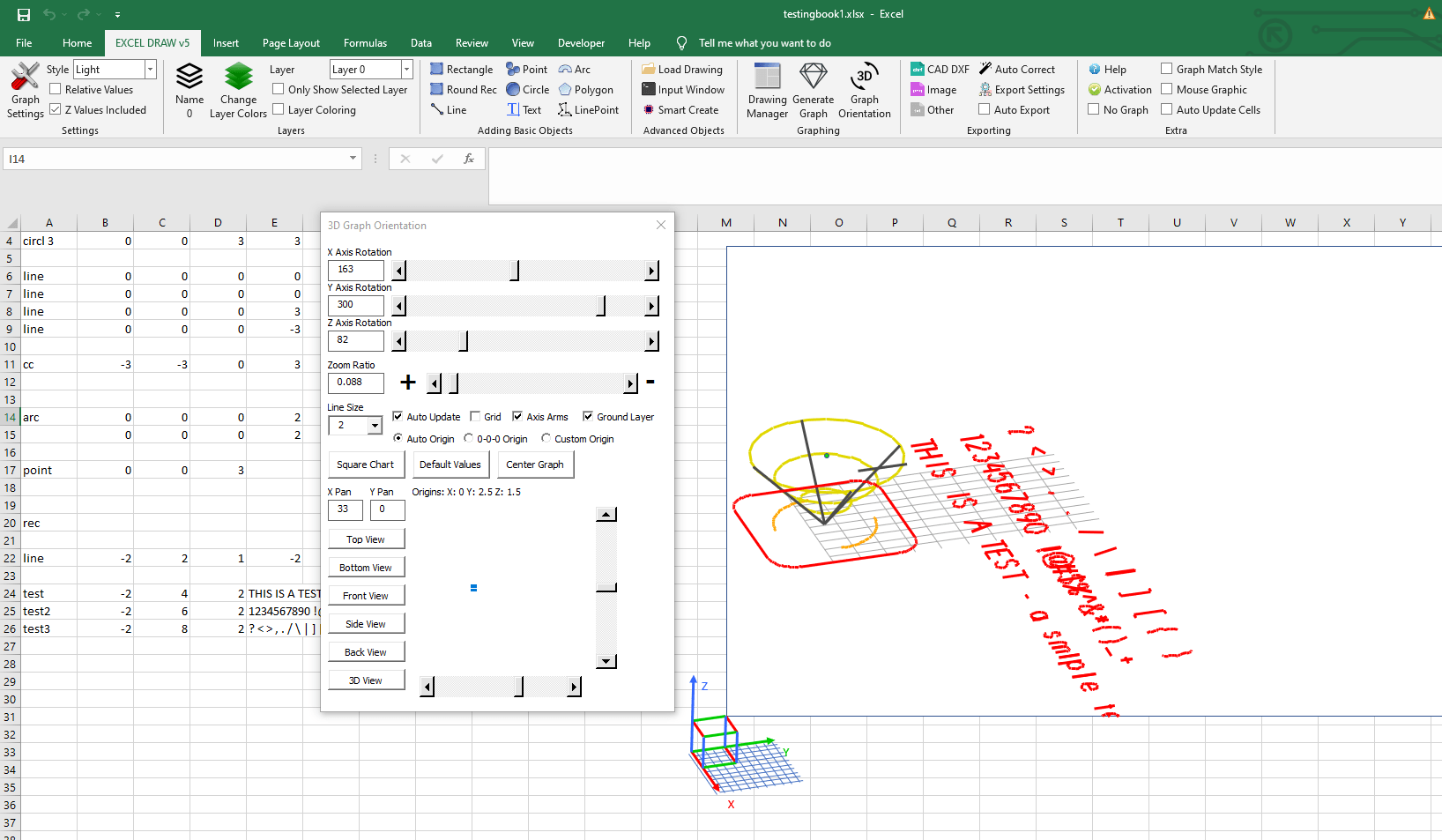
Excel Draw supports various shapes like rectangles, lines, points, circles, arcs, polygons, and text. To add an object, simply select the shape from the toolbar and click on the drawing area to place it.
Step 5: Customizing Objects
Each object can be customized for color, line width, and more. You can also define layers to organize your drawing better.
Step 6: Exporting Your Drawing
Once your drawing is complete, you can export it in various formats like DXF, PDF, JPG, XLSX, and more. This makes it easy to share your drawings with colleagues who don’t have CAD software.
Real-World Examples
Let’s look at some real-world scenarios where Excel Draw can be incredibly useful.
Example 1: Architectural Floor Plans
Architects often need to create detailed floor plans. With Excel Draw, you can create these plans directly in Excel and share them with clients who may not have CAD software.
Example 2: Engineering Schematics
Engineers can use Excel Draw to create technical schematics for machinery or electrical systems. The ability to export these drawings in various formats makes it easy to share them with team members.
Example 3: Manufacturing Blueprints
In manufacturing, detailed blueprints are essential. With Excel Draw, you can create these blueprints and even automate the process using VBA macros to export them directly to CNC machines.
Extra Tip: Automating with VBA
One of the powerful features of Excel Draw is its ability to automate tasks using VBA (Visual Basic for Applications). You can create custom macros to automate repetitive tasks, such as exporting drawings or updating object properties.

Conclusion
Creating CAD-style drawings directly in Excel with Excel Draw is a game-changer for professionals who need to create, view, and share technical drawings without the need for expensive CAD software. With its user-friendly interface and powerful features, Excel Draw makes it easy to produce high-quality drawings and share them with anyone, regardless of whether they have CAD software.




Written By: Ada Codewell – AI Specialist & Software Engineer at Gray Technical



















