
Excel Draw: The Game-Changer for CAD Drawings in Excel
Written By: Ada Codewell – AI Specialist & Software Engineer at Gray Technical
Excel Draw: The Game-Changer for CAD Drawings in Excel
Are you tired of juggling between multiple software applications to create and share CAD drawings? Imagine being able to create, view, and export CAD-style DXF drawing files directly within Microsoft Excel. This is exactly what Excel Draw offers, making it a game-changer for engineers, architects, and designers who work extensively with CAD drawings.

The Pain Point: Complexity of Managing CAD Files in Excel
One of the biggest pain points for professionals who need to work with both Excel spreadsheets and CAD drawings is the complexity and inefficiency of managing these two different file types. Often, this requires switching between multiple applications, which can be time-consuming and error-prone. Furthermore, sharing CAD files with colleagues or clients who don’t have specialized CAD software can be challenging.
Why This Problem Happens
The root cause of this issue is the lack of integration between CAD software and spreadsheet applications like Excel. Traditionally, CAD drawings are created in dedicated CAD software such as AutoCAD, which requires a steep learning curve and often comes with a hefty price tag. When these drawings need to be analyzed or shared with others who don’t have access to CAD software, it becomes a cumbersome process.
Real-World Examples
Example 1: Architectural Firms
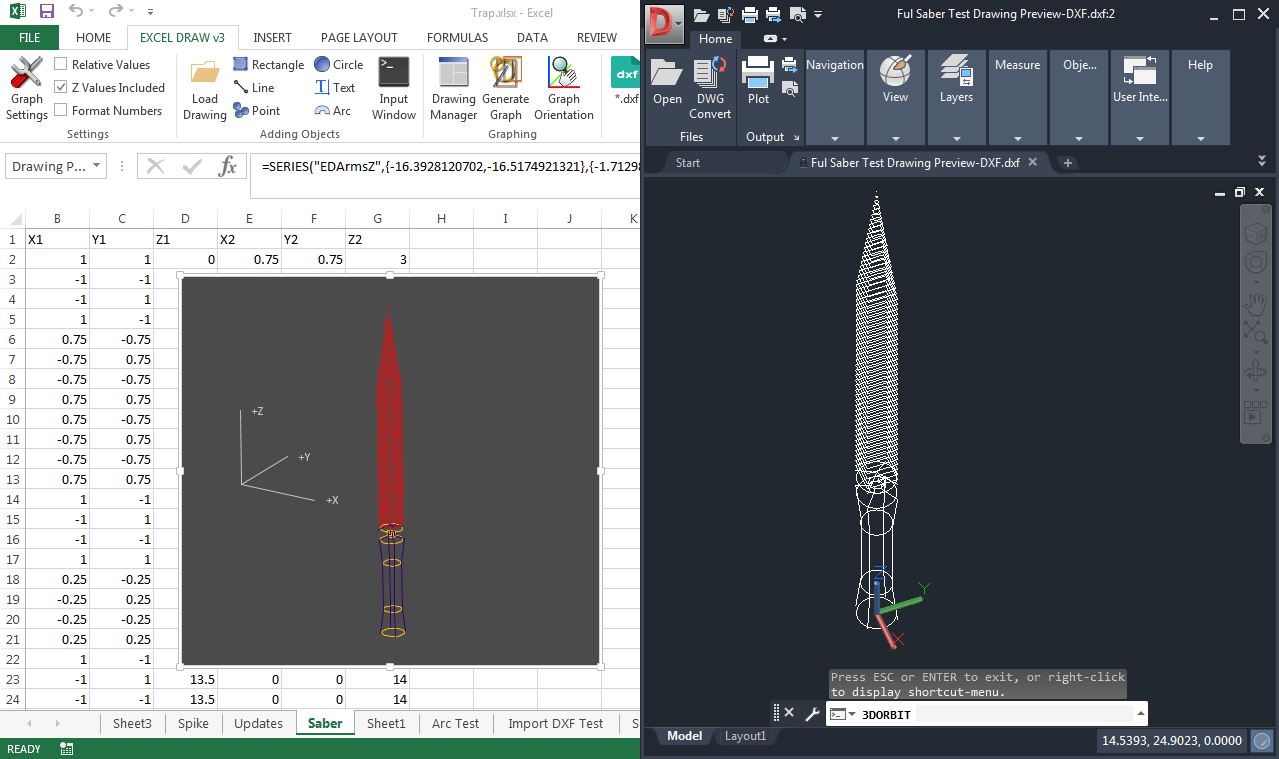
Architects often need to create detailed floor plans and schematics. Using traditional CAD software for these tasks is standard practice, but what if you also need to analyze data from these drawings within Excel? With Excel Draw, architects can seamlessly integrate their CAD drawings with Excel spreadsheets, allowing for more efficient data analysis and reporting.
Example 2: Engineering Consultants
Engineering consultants frequently need to share detailed schematics and designs with clients who may not have access to specialized CAD software. With Excel Draw, consultants can create and share CAD drawings that can be viewed by anyone with Excel, eliminating the need for additional software.
Example 3: Manufacturing Industry
In the manufacturing industry, CNC machines often require DXF files for operation. With Excel Draw, engineers can create these files directly within Excel and even automate the export process using VBA, saving valuable time and resources.

Step-by-Step Solution: How Excel Draw Solves the Problem
Excel Draw provides a comprehensive solution to the problem of managing CAD files within Excel. Here’s how it works:
1. Installation and Setup
First, download and install Excel Draw from the official website. The installation process is straightforward and includes a trial version that allows you to test the software before making a purchase.
2. Creating CAD Drawings
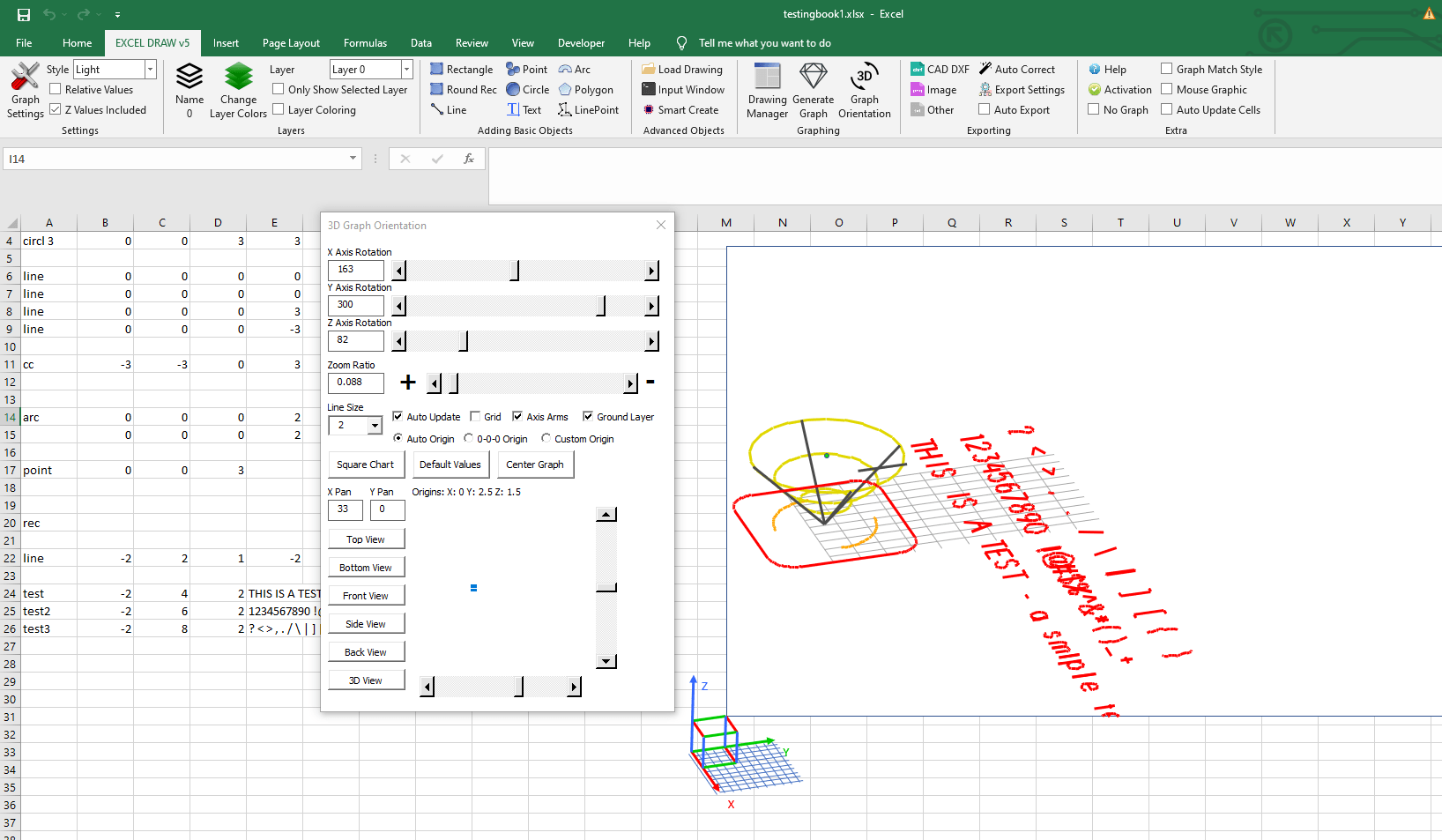
Once installed, Excel Draw adds a new ribbon tab to your Excel interface. You can start creating CAD drawings by selecting the appropriate tools from the ribbon. The software supports a wide range of objects, including lines, rectangles, circles, arcs, and text.

3. Loading DXF Files
Excel Draw allows you to load existing DXF files directly into Excel. This is particularly useful for modifying or analyzing pre-existing CAD drawings. The software also includes DXF Reader GT, a standalone application that helps in opening and loading a wide range of DXF files.
4. Customizing and Managing Drawings
With Excel Draw, you can customize every aspect of your CAD drawings, from colors and line widths to XYZ orientations. The built-in Drawing Manager allows you to organize and modify objects easily. You can also use the Distance Calculator to measure distances between objects and graph the results.
5. Exporting and Sharing Drawings
One of the standout features of Excel Draw is its ability to export drawings in various formats, including DXF, PDF, PNG, JPG, XLS, CSV, and more. This makes it easy to share your drawings with colleagues or clients who may not have access to specialized CAD software.
6. Automating Tasks with VBA
Excel Draw comes with a powerful VBA API that allows you to automate almost every aspect of the drawing process. This is particularly useful for creating repetitive tasks or customizing the software to meet specific needs. The API is installed with Excel Draw and includes examples to help you get started.
Extra Tip: Automating Drawing Exports
One advanced feature of Excel Draw is its ability to automate the export process using VBA. For example, you can create a macro that automatically exports your drawings to DXF format every time you save the Excel file. This can save valuable time and ensure consistency across your projects.
Conclusion
Excel Draw is a game-changer for professionals who need to work with CAD drawings within Excel. By integrating CAD capabilities directly into Excel, it eliminates the need for multiple software applications and makes it easier to share drawings with colleagues and clients. Whether you’re an architect, engineer, or designer, Excel Draw offers a powerful and efficient solution to your CAD drawing needs.
Written By: Ada Codewell – AI Specialist & Software Engineer






















