
Transforming Raw XYZ Data into Interactive 3D Graphs with XYZ Mesh
Written By: Ada Codewell – AI Specialist & Software Engineer at Gray Technical
Transforming Raw XYZ Data into Interactive 3D Graphs with XYZ Mesh
Are you struggling to visualize your raw XYZ data effectively? Do you need a tool that can convert this data into interactive 3D graphs directly in Excel? Look no further than XYZ Mesh. This powerful software allows you to transform your raw XYZ data into stunning, interactive 3D visualizations with just a few clicks.




Why This Problem Happens
Creating 3D graphs from raw XYZ data can be a complex and time-consuming task. Traditional methods often require specialized software and extensive technical knowledge, making it difficult for many users to visualize their data effectively. This is where XYZ Mesh comes in. It simplifies the process by allowing you to create professional-quality 3D visualizations directly within Excel.
Step-by-Step Solution

Step 1: Install XYZ Mesh
First, download and install XYZ Mesh from the official website. The software is compatible with Windows 7 and later versions.
Step 2: Prepare Your Data
Ensure your XYZ data is in a format that can be easily copied and pasted into XYZ Mesh. This typically means having your X, Y, and Z values in separate columns.
Step 3: Import Data into XYZ Mesh
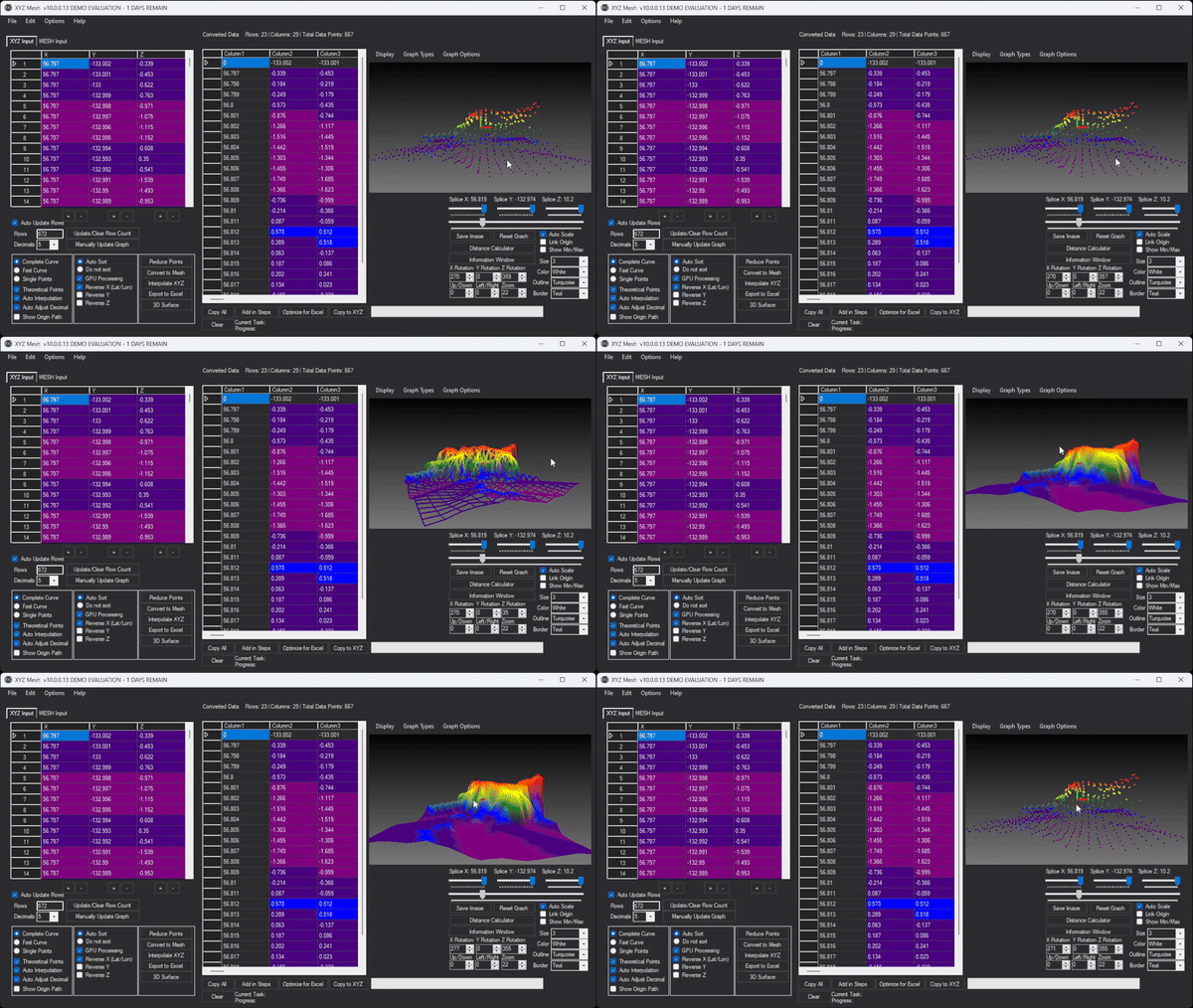
Open XYZ Mesh and paste your XYZ data into the input tab. The software will automatically update the graph as you paste the data.
Step 4: Convert to MESH
Click on the “Convert to Mesh” button to convert your XYZ data into a MESH format. This step is crucial for creating smooth and accurate 3D visualizations.
Step 5: Customize Your Graph
Use the various customization options available in XYZ Mesh to adjust the appearance of your graph. You can change colors, add textures, and even create interactive environments.
Step 6: Export to Excel
Once you are satisfied with your 3D visualization, click on the “Export to Excel” button. This will generate an Excel file containing your interactive 3D graph, which can be shared with colleagues or clients.

Real-World Examples
XYZ Mesh is used in a variety of fields to create stunning visualizations. Here are three real-world examples:
Geological Modeling
In the field of geology, XYZ Mesh is used to visualize subsurface geological formations. This helps geologists understand the distribution and characteristics of mineral deposits and other geological features.
Land Surveying
Land surveyors use XYZ Mesh to create 3D models of terrain surfaces. These models are essential for planning construction projects, managing land resources, and assessing environmental impact.
Atmospheric Analysis
Meteorologists use XYZ Mesh to visualize atmospheric data, such as temperature and pressure distributions. This helps them analyze weather patterns and predict future conditions.
Extra Tip: Creating Interactive Environments
One of the most powerful features of XYZ Mesh is its ability to create interactive 3D environments. You can add assets like trees, rocks, and plants to your graphs, allowing users to traverse the environment with standard WASD and mouse controls.
Conclusion
XYZ Mesh is a game-changer for anyone needing to visualize XYZ data. Its ability to convert raw data into interactive 3D graphs directly in Excel makes it an invaluable tool for professionals in various fields. Whether you’re a geologist, land surveyor, or meteorologist, XYZ Mesh can help you create stunning visualizations that effectively communicate your data.
Ready to transform your raw XYZ data into interactive 3D graphs? Download XYZ Mesh today and experience the difference for yourself!
Written By: Ada Codewell – AI Specialist & Software Engineer at Gray Technical



















