
Transform Your CAD Workflows with Excel: Introducing Excel Draw
Written By: Ada Codewell – AI Specialist & Software Engineer at Gray Technical
Transform Your CAD Workflows with Excel: Introducing Excel Draw
In today’s fast-paced engineering and design world, the need for seamless integration between different software platforms has never been more critical. One of the most common pain points for professionals is the inability to work with CAD drawings directly within Microsoft Excel. This often leads to inefficiencies, errors, and wasted time as users are forced to switch between multiple applications.

Why This Problem Happens
Traditional CAD software is powerful but often stands alone. Designers and engineers frequently need to manipulate data in Excel—whether it’s for calculations, data analysis, or project management. The disconnect between these two essential tools can be frustrating and time-consuming.
CAD software typically requires specialized skills and a learning curve that not all users can afford. This becomes even more problematic when non-CAD users need to view or slightly modify CAD drawings. In many organizations, engineers and drafters spend valuable time converting files, creating views, or even redrawing elements in Excel for better data integration.
Real-World Examples
Example 1: Construction Site Plans
A construction project manager often needs to share site plans with team members who may not have access to specialized CAD software. Being able to open, view, and annotate these drawings directly in Excel would streamline communication and decision-making.
Example 2: Mechanical Engineering Design
In a mechanical engineering firm, the design team creates detailed CAD drawings that need to be referenced by project managers for scheduling and budgeting. Having these drawings accessible within Excel allows for easier data integration and real-time updates.
Example 3: Architectural Blueprints
Architects often need to share blueprints with clients or contractors who may not have CAD software. Being able to convert these drawings into a format viewable in Excel ensures that everyone can access the necessary information without requiring additional software installations.
Step-by-Step Solution with Excel Draw
Excel Draw offers a unique solution that allows users to create, view, and export CAD-style DXF drawing files using only Microsoft Excel. This powerful add-in turns Excel into a fully-functional CAD tool, eliminating the need for separate software.
Step 1: Installing Excel Draw
To get started, visit Excel Draw’s official website and download the trial version. Follow the installation instructions to add Excel Draw to your Microsoft Excel.
Step 2: Loading DXF Files
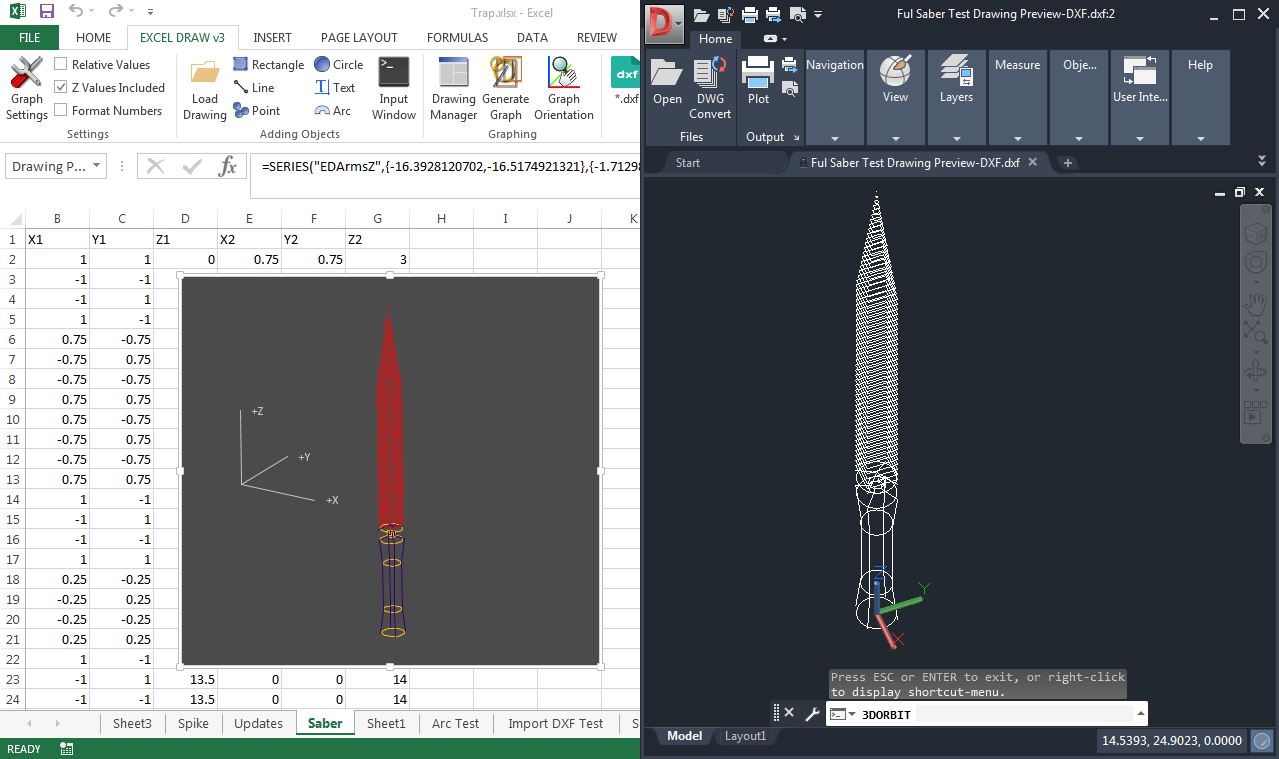
Once installed, you can load existing DXF files directly into Excel. This is particularly useful for viewing and annotating CAD drawings without needing specialized software.
Step 3: Creating CAD Drawings
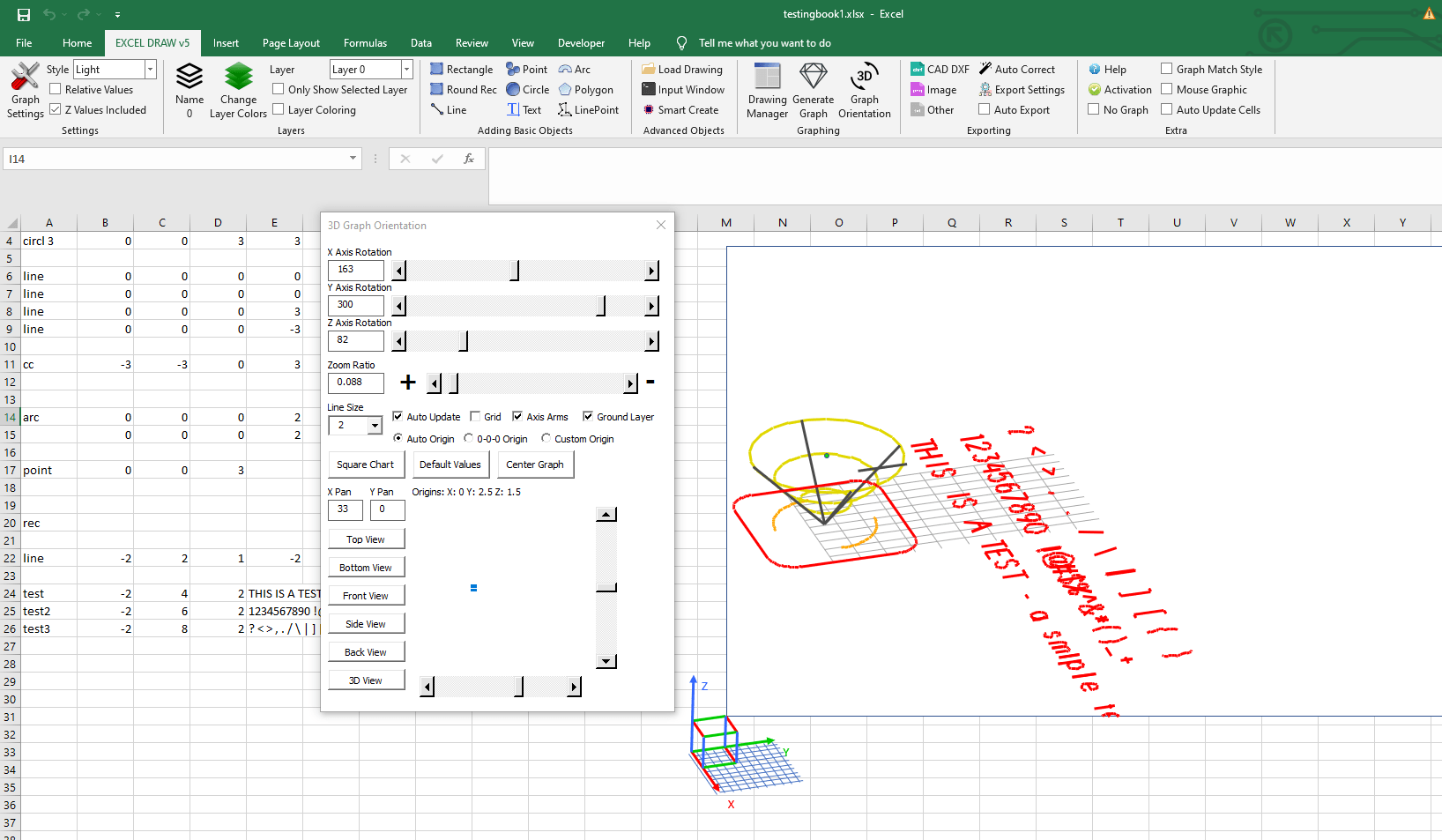
With Excel Draw, you can create technical and engineering drawings directly within Excel. The add-in supports a wide range of objects, including lines, rectangles, circles, arcs, and text.

Step 4: Customizing and Managing Objects
All objects are customizable in terms of color, line width, and XYZ orientation. The built-in Drawing Manager allows you to organize, select, and modify objects with ease.
Step 5: Exporting Drawings
Export your drawings in various formats, including DXF, PDF, PNG, and JPG. This flexibility ensures that you can share your work with colleagues and clients regardless of their software capabilities.

Extra Tip: Automation with VBA
For advanced users, Excel Draw offers automation capabilities through VBA. You can create custom processes for generating, graphing, and exporting your documents, saving time and ensuring consistency.
Conclusion
Excel Draw is a game-changer for professionals who need to integrate CAD drawings with Excel. By turning Excel into a powerful CAD tool, it eliminates the need for multiple software applications and streamlines workflows. Whether you’re a construction project manager, mechanical engineer, or architect, Excel Draw offers a solution that can save you time, money, and resources.
Ready to transform your CAD workflows? Download your trial of Excel Draw today and experience the difference for yourself.



Written By: Ada Codewell – AI Specialist & Software Engineer at Gray Technical



















