
Tackling CAD Drawings in Excel: How Excel Draw Solves Your Technical Challenges
Written By: Ada Codewell – AI Specialist & Software Engineer at Gray Technical
Tackling CAD Drawings in Excel: How Excel Draw Solves Your Technical Challenges
Written By: Ada Codewell – AI Specialist & Software Engineer at Gray Technical
Have you ever needed to create or view a CAD drawing, but found yourself restricted by the need for specialized software and knowledge? If you’re like most professionals, you’ve faced this challenge at some point. The good news is that there’s a solution: Excel Draw.




Why This Problem Happens
Traditional CAD software often comes with a steep learning curve and high cost, making it inaccessible for many users. Additionally, sharing CAD files can be challenging since recipients may not have the necessary software to view them. This is where Excel Draw comes in as a game-changer.
Step-by-Step Solution: How Excel Draw Solves This

Step 1: Installation and Setup
To get started with Excel Draw, you’ll first need to install the add-in. This process is straightforward and can be completed in a few simple steps:
- Download Excel Draw from the official website.
- Run the installer with administrative privileges.
- Follow the on-screen instructions to complete the installation.
Step 2: Opening and Creating Drawings
Once installed, you can start creating or opening CAD drawings directly within Excel. Here’s how:
- Open Excel and go to the “Excel Draw” tab in the ribbon.
- To create a new drawing, click on “New Drawing.”
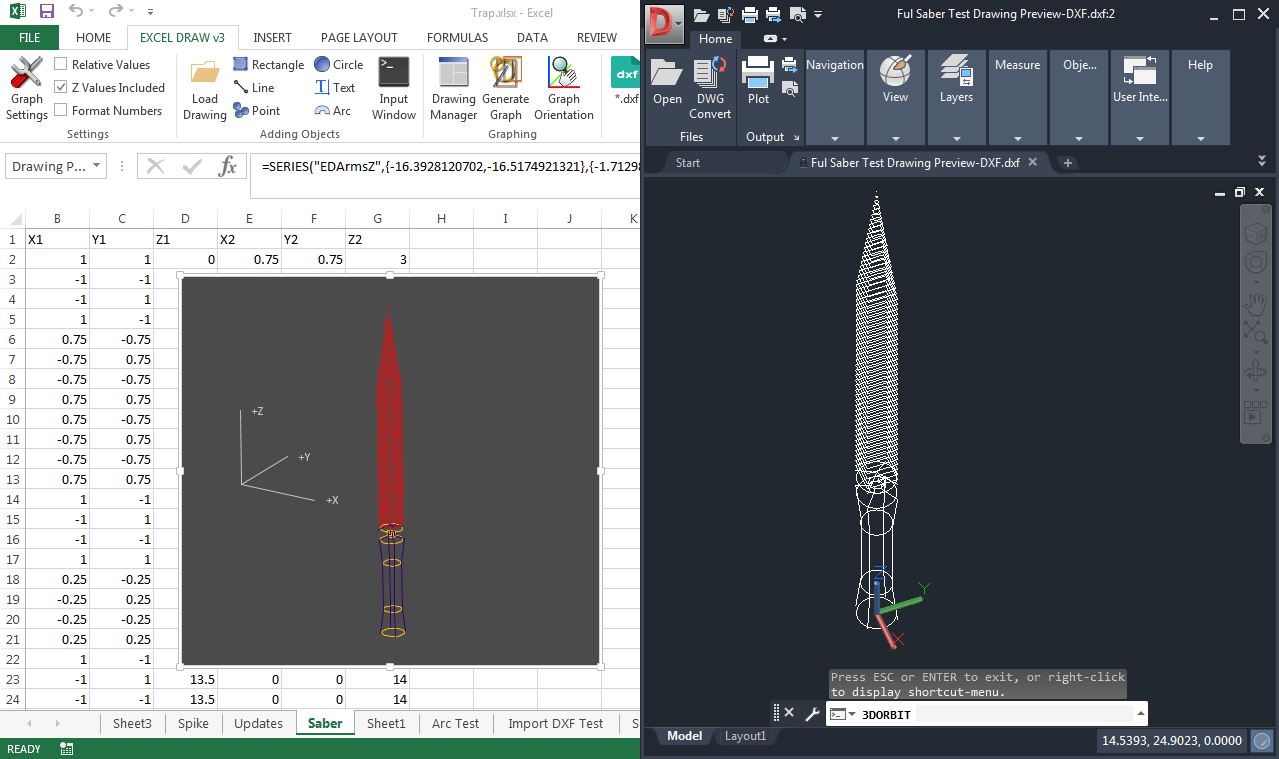
- To open an existing DXF file, use the “Open Drawing” option.

Step 3: Customizing Your Drawing
With Excel Draw, you can customize every aspect of your drawing. Here’s what you can do:
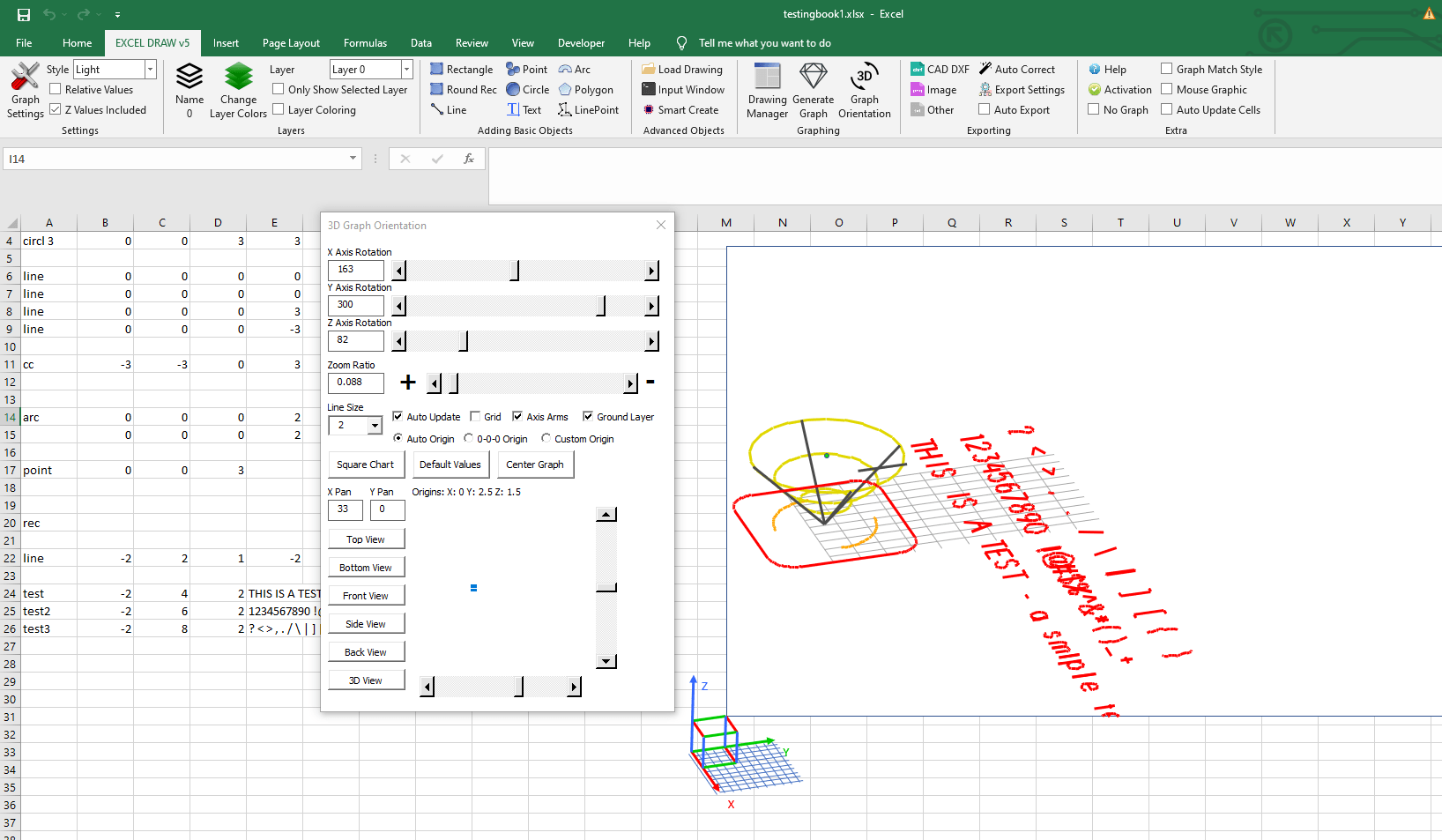
- Add various shapes such as rectangles, lines, points, circles, arcs, and text.
- Use the Command Line Input for quick data entry.
- Customize colors, line widths, and other properties for each object.
- Organize objects using the Drawing Manager.
Step 4: Exporting Your Drawing
Exporting your CAD drawing is as easy as creating it. Excel Draw supports multiple formats:
- DXF (for CAD software compatibility)
- PDF, PNG, JPG (for sharing and presentations)
- XLS, XLSX, CSV (for further data manipulation)
Step 5: Automating Tasks with VBA
For those who need to automate repetitive tasks, Excel Draw offers a powerful VBA API. This allows you to:
- Create custom processes for creating and exporting drawings.
- Automate data entry and object placement.
- Integrate with other software solutions for seamless workflows.
Real-World Examples
Example 1: Architectural Floor Plans
An architect needs to create a detailed floor plan for a client. Using Excel Draw, they can:
- Import the initial DXF file created with other CAD software.
- Make necessary modifications directly in Excel.
- Export the final version as a PDF for the client and as a DXF file for further engineering work.
Example 2: Engineering Schematics
A mechanical engineer needs to create schematics for a new product. With Excel Draw, they can:
- Use Excel cells to input measurements and dimensions.
- Create detailed drawings with various shapes and lines.
- Automate the process using VBA macros to quickly generate multiple variations of the schematic.
Example 3: CNC Machine Programming
A manufacturing engineer needs to create instructions for a CNC machine. Using Excel Draw, they can:
- Design the parts and layout in Excel Draw.
- Export the drawing as a DXF file compatible with the CNC software.
- Automatically send the data to the CNC machine using VBA automation.

Extra Tip: Integrating with DXF Reader GT
Excel Draw comes with a free copy of DXF Reader GT, which enhances its capabilities. Here’s how you can make the most of it:
- Open and analyze complex DXF files without needing to switch software.
- Use DXF Reader GT to gather data from various DXF files and import them into Excel Draw for further editing.
- Ensure compatibility with a wide range of DXF formats, making your workflow smoother and more efficient.
Conclusion
Excel Draw offers a unique solution for professionals who need to create, view, and share CAD drawings without the complexity and cost of traditional CAD software. By integrating directly with Excel, it provides a user-friendly platform that anyone can use, regardless of their CAD expertise.
Ready to simplify your technical drawing process? Download your trial of Excel Draw today and experience the difference for yourself.
If you have any questions or need further assistance, feel free to contact our support team at support@graytechnical.com.



















