
Struggling to Create CAD Drawings in Excel? Here’s Your Solution
Written By: Ada Codewell – AI Specialist & Software Engineer at Gray Technical
Struggling to Create CAD Drawings in Excel? Here’s Your Solution
Are you tired of juggling multiple software applications just to create and share CAD drawings? If you’re an engineer, architect, or designer who uses Microsoft Excel for data management, you’ll know the struggle of maintaining CAD drawings within a spreadsheet environment. You’re in luck because Excel Draw offers a seamless solution that integrates CAD capabilities directly into Excel.
Written By: Ada Codewell – AI Specialist & Software Engineer
Why This Problem Happens
The challenge of managing CAD drawings within Excel typically arises due to the need for precise technical illustrations and the convenience of sharing data in a spreadsheet. Traditional CAD software can be cumbersome to use alongside Excel, leading to compatibility issues and increased complexity. This often results in wasted time and resources, as users have to switch between multiple applications.
Step-by-Step Solution with Excel Draw
Excel Draw is an add-in for Microsoft Excel that enables you to create, view, and export CAD-style DXF drawings without needing any other software. Here’s how it can solve your problem step by step:
1. Installation
First, download and install Excel Draw. The installation process is straightforward and integrates smoothly with Excel.
2. Creating CAD Drawings
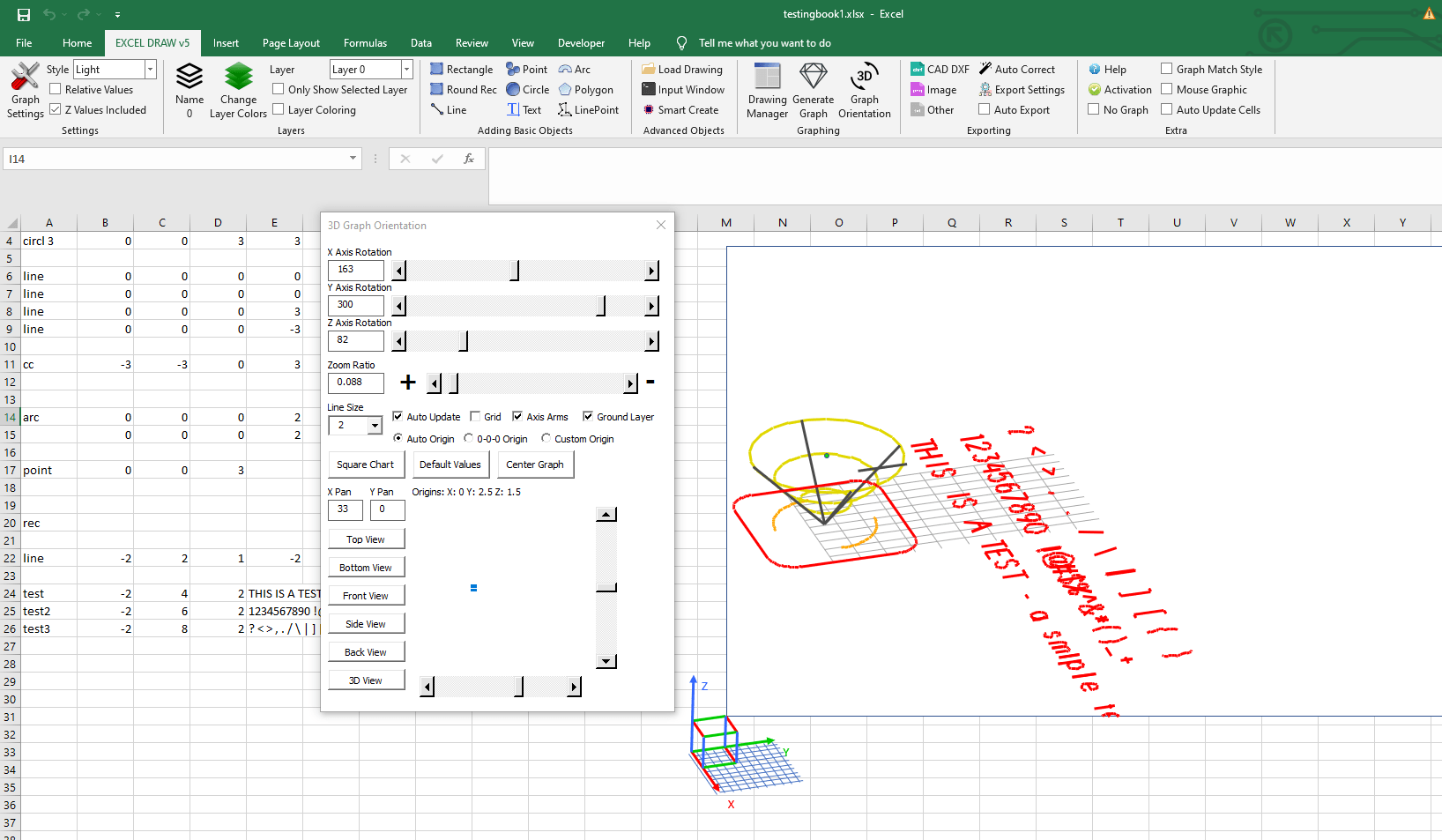
Once installed, you can start creating CAD drawings directly within Excel. Excel Draw supports various shapes like rectangles, lines, points, circles, arcs, polygons, and text.
3. Importing DXF Files
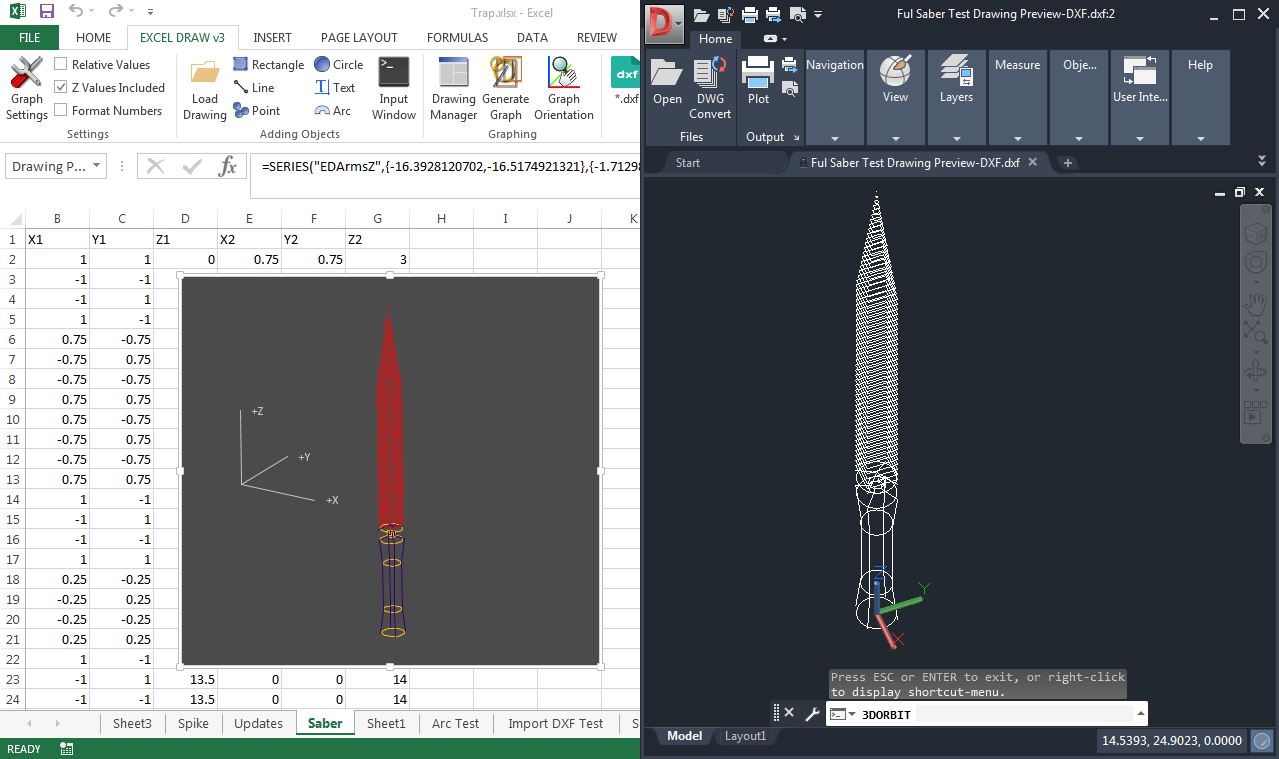
You can import existing DXF files into Excel using the built-in DXF Reader GT, which is included for free with Excel Draw. This allows you to work with pre-existing CAD files without any compatibility issues.

4. Customizing and Managing Objects
The Drawing Manager in Excel Draw lets you organize, select, and modify objects easily. You can customize colors, line widths, and other properties to fit your needs.
5. Exporting Drawings
Once your drawing is complete, you can export it in various formats such as DXF, PDF, PNG, JPG, and more. This ensures that anyone with Excel can view your drawings without needing additional software.

6. Automating Tasks with VBA
For advanced users, Excel Draw supports VBA automation. You can create custom macros to automate repetitive tasks, saving you time and effort.

Real-World Examples
Example 1: Architectural Floor Plans
As an architect, you can create detailed floor plans directly in Excel using Excel Draw. You can easily import existing DXF files, make modifications, and export the final version for client review.
Example 2: Engineering Diagrams
Engineers can use Excel Draw to create technical diagrams and schematics. The ability to automate tasks with VBA makes it easy to update diagrams as new data becomes available.
Example 3: Manufacturing Layouts
In manufacturing, creating layouts for machinery or assembly lines can be simplified with Excel Draw. The ability to share these drawings with colleagues who only have Excel ensures seamless collaboration.
Extra Tip: Optimizing Workflow with Excel Draw
To get the most out of Excel Draw, consider using its automation features. For example, you can create a macro that automatically exports your CAD drawings to a specific folder after each update. This can save you a significant amount of time and reduce the risk of errors.
Conclusion
Excel Draw is a game-changer for anyone who needs to create and share CAD drawings within Excel. By integrating CAD capabilities directly into Excel, it eliminates the need for multiple software applications and streamlines your workflow. Whether you’re an architect, engineer, or designer, Excel Draw offers a powerful solution that saves time and resources.
Ready to simplify your CAD drawing process? Try Excel Draw today and experience the difference for yourself.






















