
Streamlining CAD Workflows: How Excel Draw Solves the Challenge of Sharing CAD Drawings
Written By: Ada Codewell – AI Specialist & Software Engineer at Gray Technical
Streamlining CAD Workflows: How Excel Draw Solves the Challenge of Sharing CAD Drawings
Written By: Ada Codewell – AI Specialist & Software Engineer at Gray Technical.
In today’s collaborative work environments, sharing technical drawings efficiently can be a major challenge. Imagine you’re working on an engineering project and need to send detailed CAD drawings to your team members who don’t have access to expensive CAD software. This is where Excel Draw comes in handy, providing a seamless solution for creating, viewing, and sharing CAD-style DXF drawing files using just Microsoft Excel.

Why Sharing CAD Drawings is a Challenge
Traditional CAD software often requires specialized knowledge and expensive licenses. This can create barriers when collaborating with team members who are not CAD experts or when sharing files with clients and partners who don’t have the necessary software.
The main issues include:
- High cost of CAD software licenses
- Complexity of CAD tools for non-specialists
- Incompatibility issues when sharing files with those who don’t have the same CAD software
How Excel Draw Solves This Problem
Excel Draw is designed to integrate CAD capabilities directly into Microsoft Excel, making it accessible for anyone familiar with spreadsheets. Here’s how it solves the issue of sharing CAD drawings:

Step-by-Step Solution
- Installation and Setup: Download Excel Draw from the official website. Follow the installation instructions to integrate it with your Excel application.
- Creating CAD Drawings: Open Excel and navigate to the Excel Draw tab. Use the tools provided to create lines, rectangles, circles, arcs, and text directly within Excel.
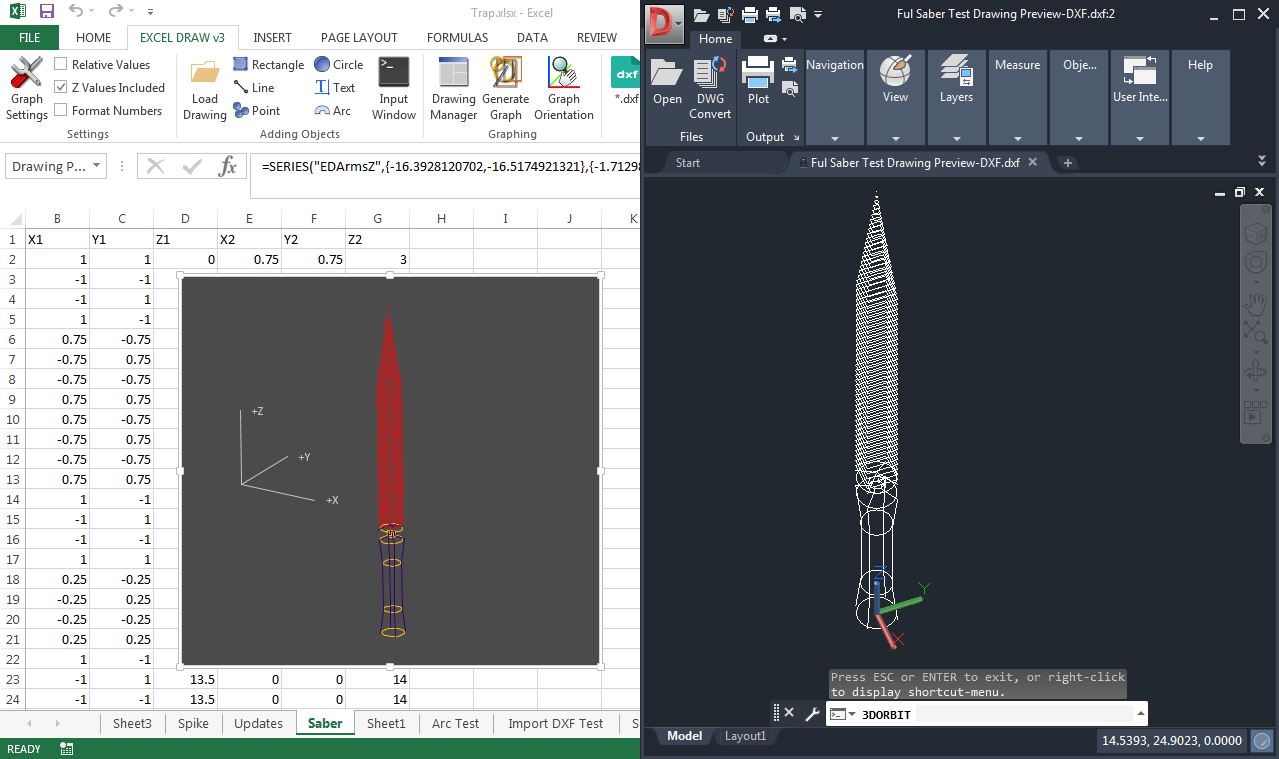
- Importing DXF Files: If you have existing DXF files, you can import them into Excel Draw using the built-in DXF Reader GT tool. This allows you to edit and modify CAD drawings within Excel.
- Sharing with Non-CAD Users: Once your drawing is complete, save it as an Excel file. Anyone with Excel (version 2007 and up) can view the drawing without needing any additional software.
- Exporting to Other Formats: If you need to share the drawing in a different format, Excel Draw allows you to export your work as DXF, PDF, PNG, JPG, HTML, or CSV files. This ensures compatibility with various platforms and devices.
Extra Tip: Automating with VBA
One of the powerful features of Excel Draw is its ability to integrate with VBA (Visual Basic for Applications). This allows you to automate repetitive tasks and create custom workflows.
For example, you can write a VBA script to automatically export your drawings to specific formats or send them via email. This can save you a significant amount of time and reduce the risk of errors.
Real-World Examples
Example 1: Architectural Floor Plans
An architect needs to share detailed floor plans with clients who do not have CAD software. By using Excel Draw, the architect can create the floor plan in Excel and share it as an Excel file. The clients can view the plans without any compatibility issues.
Example 2: Engineering Designs
An engineering team is working on a project that requires frequent updates to technical drawings. By using Excel Draw, the team can collaborate on the same Excel file, making real-time updates and sharing the latest version with stakeholders who may not have CAD software.
Example 3: Manufacturing Blueprints
A manufacturing company needs to send blueprints to suppliers who do not have access to CAD software. By exporting the drawings as PDFs using Excel Draw, the company can ensure that the suppliers receive detailed and accurate instructions without any compatibility issues.
Conclusion
Excel Draw offers a practical solution for sharing CAD drawings in environments where not everyone has access to specialized CAD software. By integrating CAD capabilities directly into Microsoft Excel, it makes technical drawing accessible to a wider audience, saving time, money, and resources.
If you’re looking to streamline your workflows and make collaboration easier, Excel Draw is a tool worth considering. Its user-friendly interface, powerful features, and compatibility with various formats make it an invaluable addition to any professional’s toolkit.






















