
Streamline Your CAD Workflow with Excel Draw: The Ultimate Solution for In-Excel CAD Drawing
Written By: Ada Codewell – AI Specialist & Software Engineer at Gray Technical
Streamline Your CAD Workflow with Excel Draw: The Ultimate Solution for In-Excel CAD Drawing
Are you tired of switching between Excel and CAD software to create or edit technical drawings? Do you often find yourself struggling to share CAD files with colleagues who don’t have access to expensive CAD tools? If these challenges sound familiar, it’s time to discover how Excel Draw can revolutionize your workflow.




Why This Problem Happens
The need to create, edit, and share CAD drawings often arises in fields like architecture, engineering, and manufacturing. Traditionally, this requires specialized CAD software which can be costly, complex, and cumbersome to use alongside other productivity tools like Microsoft Excel.
Many professionals end up toggling between multiple applications or relying on colleagues with CAD expertise to make even minor changes, leading to inefficiencies and bottlenecks. Additionally, sharing CAD drawings with stakeholders who don’t have CAD software can be challenging, as most free viewers lack advanced functionalities.
Real-World Examples
Example 1: Architectural Floor Plans
Architects often need to create and modify floor plans quickly. With Excel Draw, they can leverage the familiarity of Excel to draft, edit, and annotate floor plans without needing to switch to a CAD application.
Example 2: Engineering Schematics
Engineers frequently work with technical schematics that require precise measurements. With Excel Draw, they can create detailed schematics directly in Excel and easily share them with team members who might not have access to CAD software.
Example 3: Manufacturing Blueprints
In manufacturing, blueprints need to be accurate and easily shareable across different departments. Excel Draw allows for the creation of detailed blueprints that can be viewed by anyone with Excel, eliminating compatibility issues.
Step-by-Step Solution
1. Installing Excel Draw
To get started, download and install Excel Draw. The installation process is straightforward and integrates seamlessly with your existing Microsoft Excel setup.
2. Creating a New Drawing
Open Excel and activate the Excel Draw tab. Click on “New Drawing” to start creating your CAD drawing directly within an Excel sheet.

3. Adding Objects
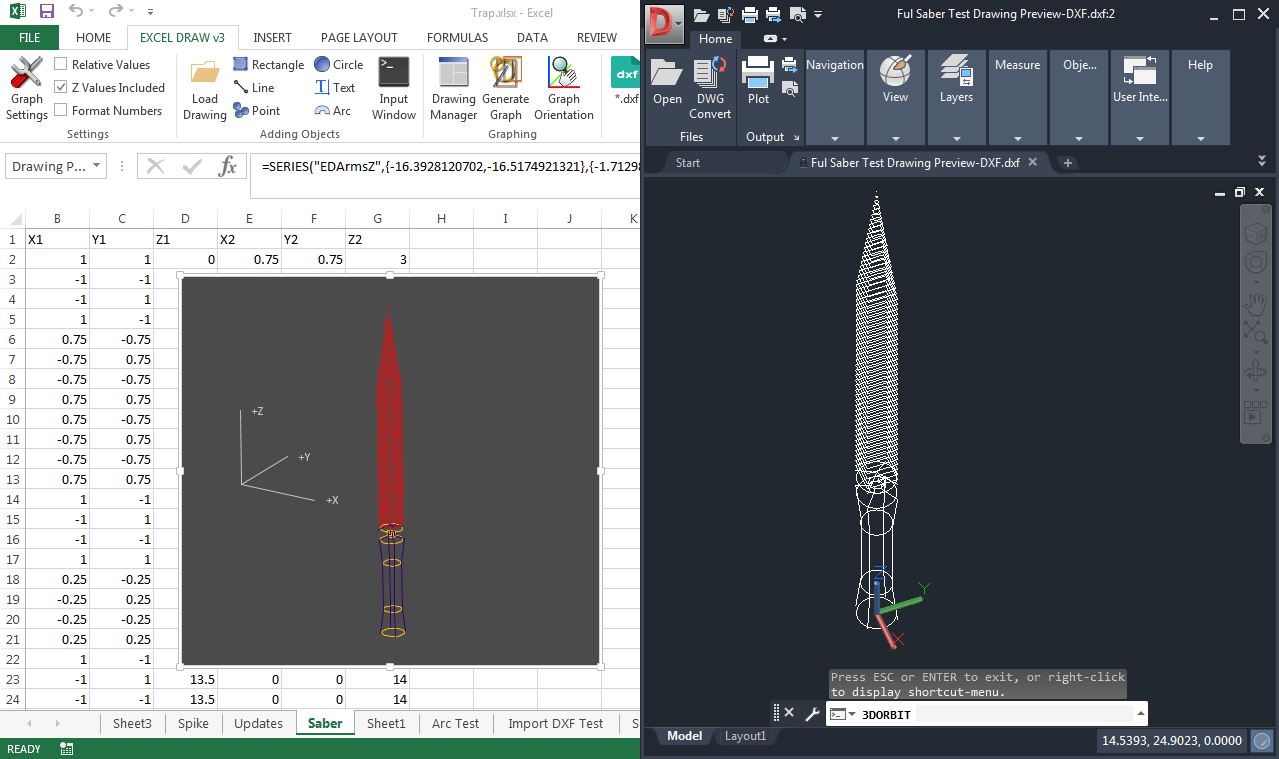
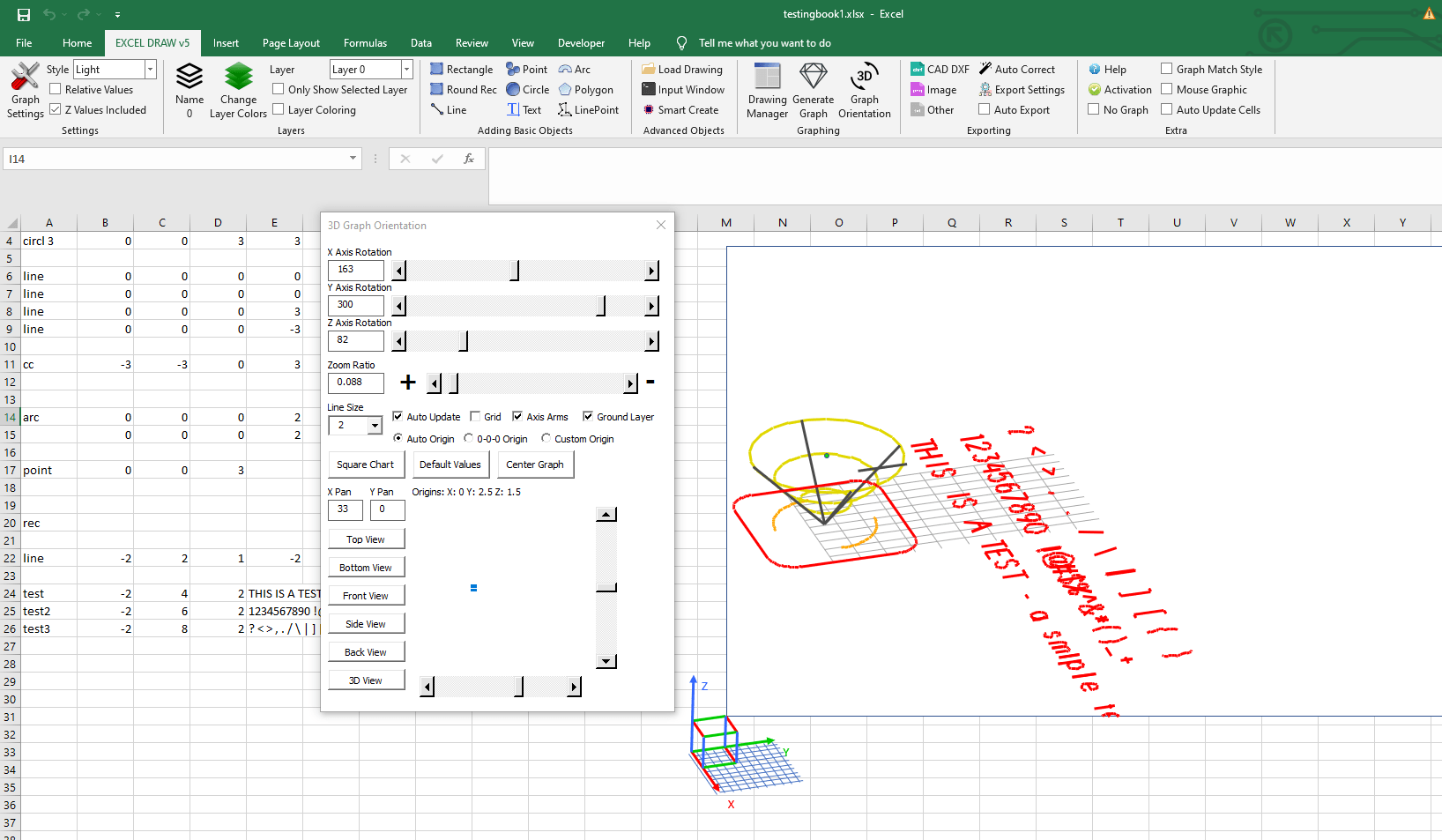
Use the toolbar to add various objects like lines, rectangles, circles, and text. You can input XYZ coordinates directly into Excel cells or use the command line input for more complex shapes.
4. Customizing Objects
Customize the color, line width, and other properties of each object to suit your needs. You can also organize objects into different layers for better management.

5. Exporting Your Drawing
Once your drawing is complete, you can export it in various formats including DXF, PDF, and image files. This makes it easy to share your work with colleagues or clients who may not have Excel Draw.
6. Automating with VBA
For advanced users, Excel Draw offers VBA automation capabilities. This allows you to create custom scripts for repetitive tasks, streamlining your workflow even further.
Extra Tip: Integrating with Other Tools
Excel Draw can be integrated with other tools and software, such as CNC machines, to automate the export of drawings directly to manufacturing equipment. This not only saves time but also reduces the risk of errors during data transfer.
Conclusion
Excel Draw is a game-changer for anyone needing to create or edit CAD drawings within Excel. It offers a seamless, integrated solution that eliminates the need for expensive CAD software and makes it easy to share drawings with colleagues and clients. Whether you’re an architect, engineer, or manufacturer, Excel Draw can significantly enhance your productivity and efficiency.
Ready to revolutionize your workflow? Try Excel Draw today and experience the difference for yourself.
Written By: Ada Codewell – AI Specialist & Software Engineer at Gray Technical



















