
Streamline Your CAD Workflow: Create and Share Drawings Directly in Excel
Written By: Ada Codewell – AI Specialist & Software Engineer at Gray Technical
Streamline Your CAD Workflow: Create and Share Drawings Directly in Excel
Creating technical drawings for engineering projects can be a time-consuming process, especially when you have to switch between different software tools. But what if you could create, view, and share CAD-style drawings directly within Microsoft Excel? Enter Excel Draw, an innovative add-in that transforms Excel into a full-fledged CAD drawing tool.




Why This Problem Happens
Traditional CAD software can be expensive, complex, and often requires specialized training. For many professionals, switching between Excel for data management and a separate CAD program for drawing creation is inefficient. This back-and-forth not only wastes time but also increases the risk of errors.
The Pain Point: Inefficient CAD Workflow
Many engineers, architects, and technicians struggle with the inefficiencies of managing data in Excel and creating drawings in a separate CAD program. The need to maintain consistency between data and drawings can be challenging and time-consuming. This is where Excel Draw comes in, offering a seamless solution that integrates CAD capabilities directly into Excel.
Step-by-Step Solution: How Excel Draw Solves the Problem
Excel Draw provides a unique solution by allowing users to create, view, and export CAD-style drawings directly within Excel. Here’s how it works:
1. Installation and Setup
First, download and install Excel Draw. The installation process is straightforward, and the add-in integrates seamlessly with Excel.
2. Creating Drawings
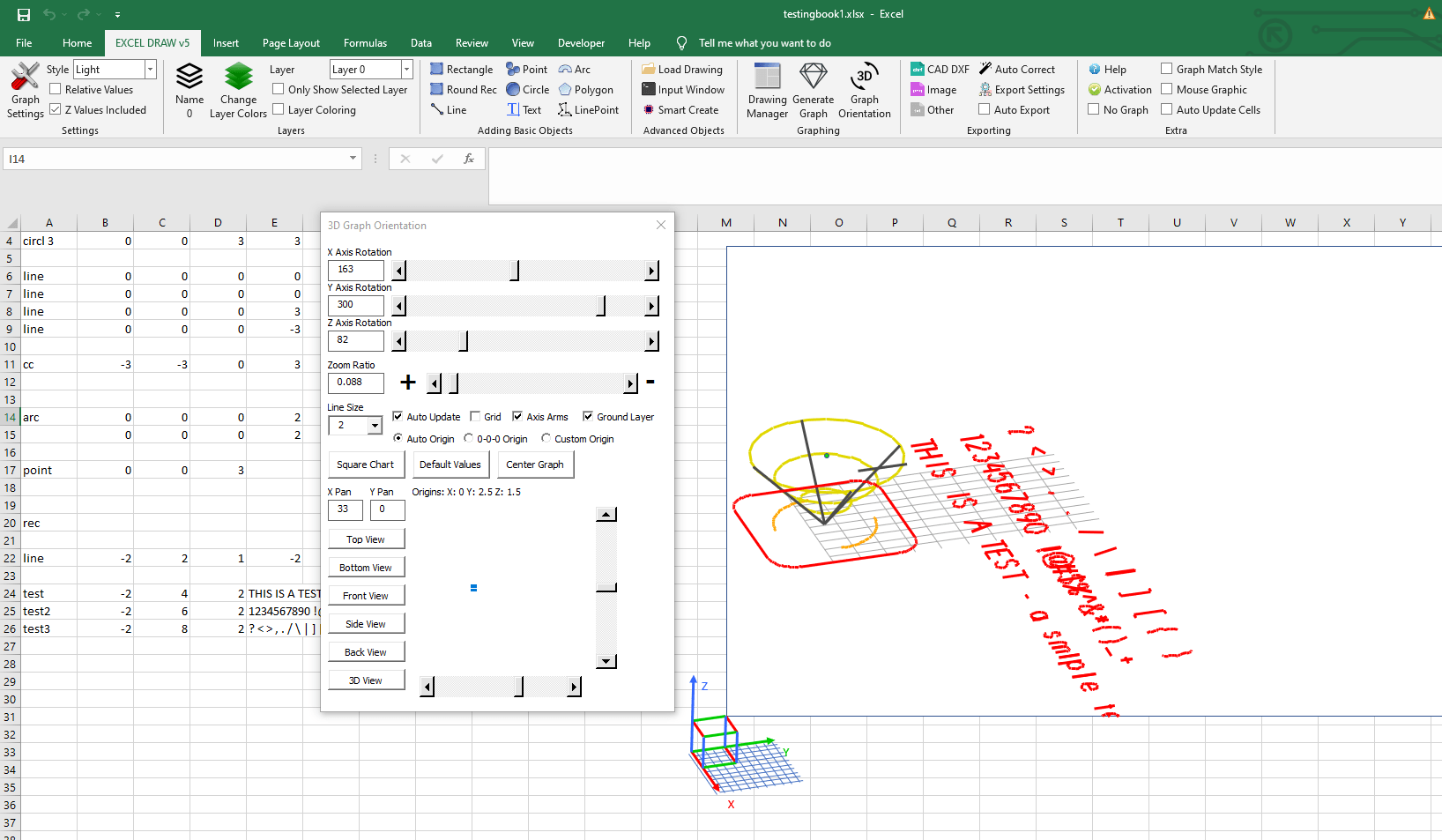
Once installed, you can start creating drawings directly in Excel. Use the intuitive toolbar to draw lines, rectangles, circles, arcs, and text. The tool supports both 2D and 3D drawings, making it versatile for various projects.

3. Importing and Exporting DXF Files
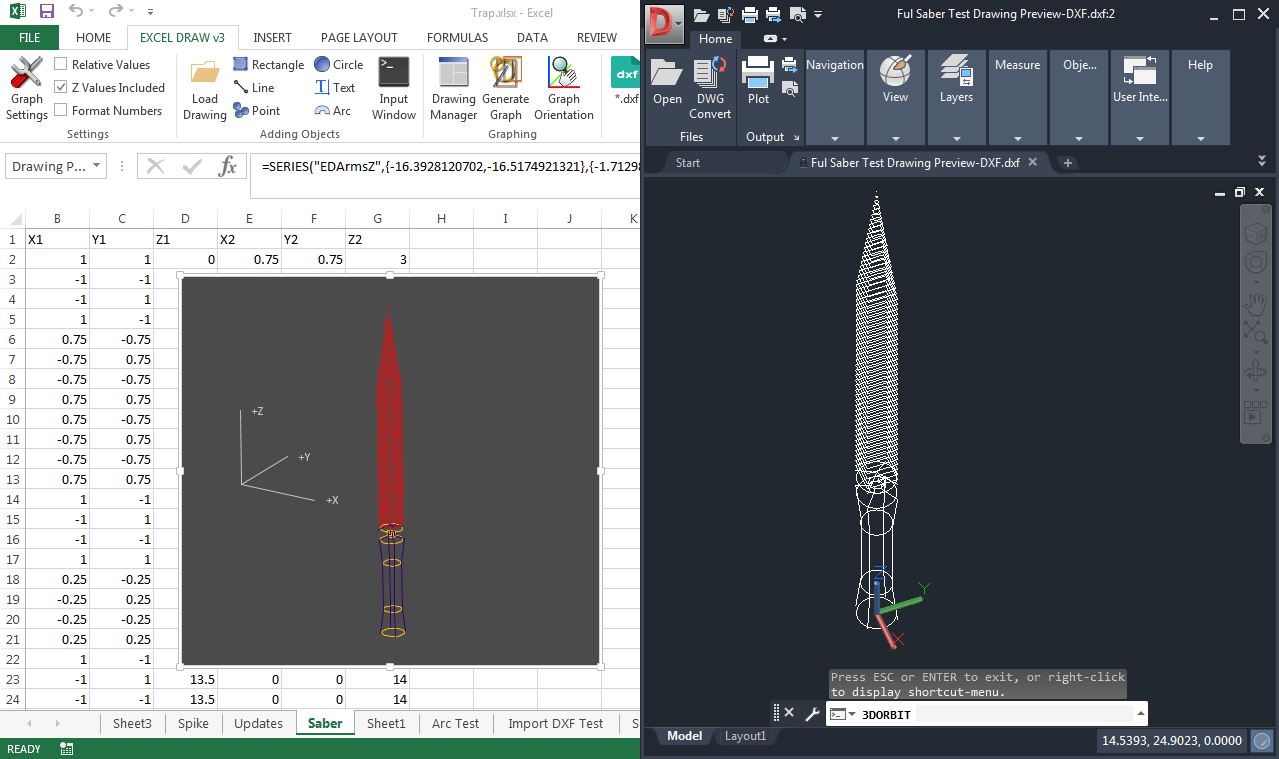
One of the standout features of Excel Draw is its ability to import and export DXF files. This means you can work with industry-standard CAD files without needing AutoCAD. Simply load a DXF file into Excel Draw, make your changes, and export it back to DXF format.
4. Real-Time Updates
Excel Draw automatically updates your drawings in real-time as you modify the data in your spreadsheet. This ensures that your drawings always reflect the latest data, reducing the risk of errors.
5. Sharing and Collaboration
One of the biggest advantages of using Excel Draw is the ability to share your drawings with anyone who has Excel. There’s no need for recipients to have CAD software or Excel Draw installed. This makes collaboration easier and more efficient.

Real-World Examples
Let’s look at a few real-world examples where Excel Draw can make a significant difference:
Example 1: Architectural Floor Plans
Architects often need to create detailed floor plans and share them with clients or contractors. With Excel Draw, architects can create these plans directly in Excel, ensuring that all measurements and data are accurately reflected in the drawings.
Example 2: Engineering Schematics
Engineers working on complex projects can use Excel Draw to create schematics and diagrams. The ability to import and export DXF files makes it easy to collaborate with other engineers who may be using different CAD software.
Example 3: Construction Blueprints
Construction professionals can use Excel Draw to create detailed blueprints and share them with contractors and subcontractors. The real-time updating feature ensures that any changes in the data are immediately reflected in the drawings, reducing the risk of errors on the job site.
Conclusion: Why Excel Draw is a Game-Changer
Excel Draw offers a powerful solution for anyone who needs to create and share CAD-style drawings within Excel. By integrating CAD capabilities directly into Excel, it eliminates the need for separate software and reduces the risk of errors. Whether you’re an architect, engineer, or construction professional, Excel Draw can help streamline your workflow and improve collaboration.
Ready to revolutionize your CAD workflow? Give Excel Draw a try today and experience the difference for yourself. Download your trial version now and see how easy it is to create, view, and share drawings directly in Excel.
Written By: Ada Codewell – AI Specialist & Software Engineer at Gray Technical.



















