
Simplify CAD Drawing Creation with Excel Draw
Written By: Ada Codewell – AI Specialist & Software Engineer at Gray Technical
Simplify CAD Drawing Creation with Excel Draw
Are you tired of juggling between multiple software programs to create and share CAD drawings? If so, you’re not alone. Many professionals struggle with the complexity of CAD software and the need for specialized skills to produce technical drawings. Fortunately, there’s a solution that allows you to create CAD-style drawings directly within Microsoft Excel: Excel Draw.




Why CAD Drawings Are Challenging for Many
Creating CAD drawings traditionally requires specialized software like AutoCAD, which can be complex and expensive. These programs often come with a steep learning curve and require extensive training to use effectively. Additionally, sharing these drawings with colleagues or clients who don’t have access to the same software can be problematic.
The Solution: Excel Draw
Excel Draw is an add-in for Microsoft Excel that enables you to create, view, and export CAD-style DXF drawing files without needing any other software. This tool leverages the familiarity of Excel, making it accessible for anyone who knows how to use a spreadsheet.

Real-World Examples
Let’s explore three practical scenarios where Excel Draw can be a game-changer:
Example 1: Architectural Floor Plans
Architects often need to create and share floor plans with clients and contractors. With Excel Draw, architects can easily design floor plans within Excel and then export them as DXF files for further use in CAD software or simply share the Excel file itself. Clients without CAD software can still view the drawings.
Example 2: Engineering Diagrams
Engineers frequently create technical diagrams for various projects. Using Excel Draw, they can quickly sketch out their designs directly in Excel and then export them as DXF files to be used in more detailed CAD software later on. This dual functionality saves time and streamlines the workflow.
Example 3: CNC Machine Programming
For manufacturers who use CNC machines, creating the necessary drawings and programming instructions can be a complex process. With Excel Draw, users can create the required CAD files and export them directly to their CNC machines using VBA automation. This integration significantly reduces the time and effort needed for setup.
Step-by-Step Solution: How to Use Excel Draw
Here’s a step-by-step guide to getting started with Excel Draw:
1. Installation
First, download and install Excel Draw from the official website. Follow the installation prompts to integrate the add-in with your version of Microsoft Excel.

2. Creating a Drawing
Open Excel and navigate to the “Excel Draw” tab on the ribbon. From here, you can choose to create a new drawing or import an existing DXF file.
3. Adding Objects
Use the toolbar to add various objects like lines, rectangles, circles, text, and more to your drawing. You can customize each object’s properties such as color, line width, and position.
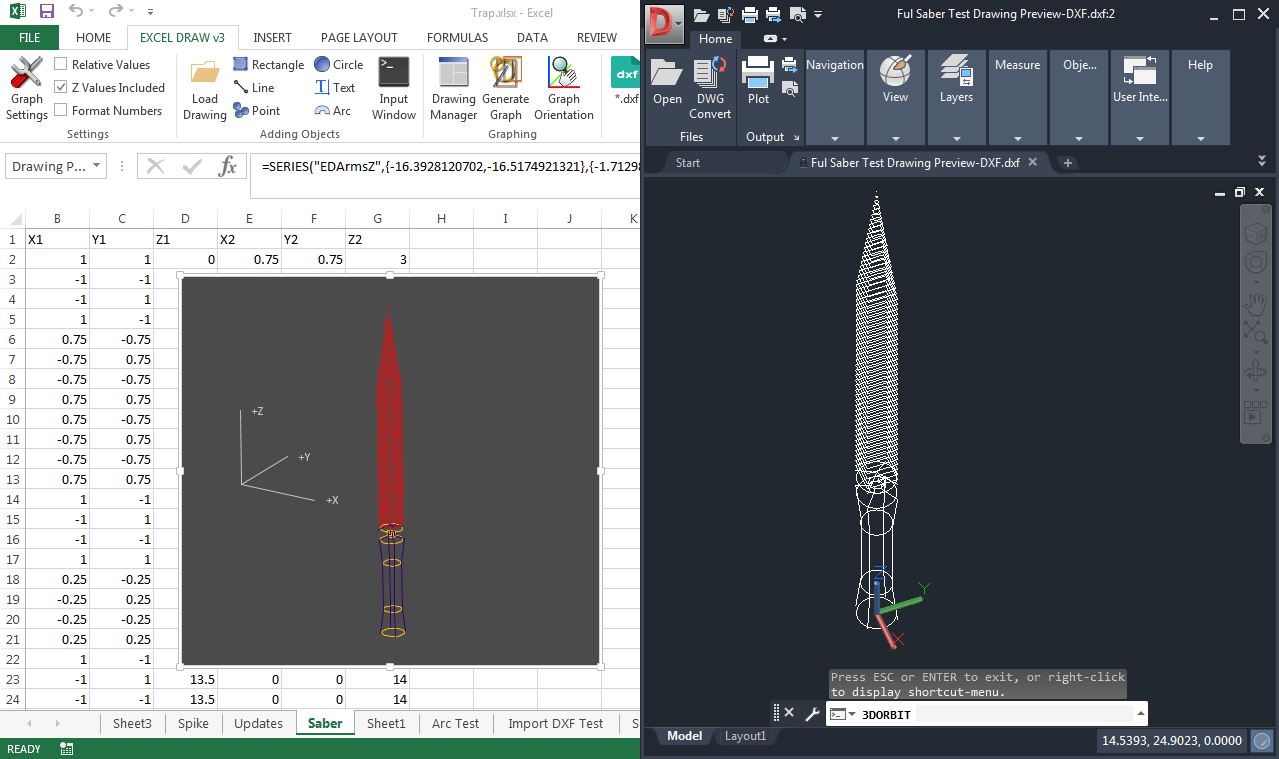
4. Editing and Managing Objects
The Drawing Manager tool allows you to organize, edit, or delete objects within your drawing. You can also calculate distances between objects and display these measurements directly on the graph.
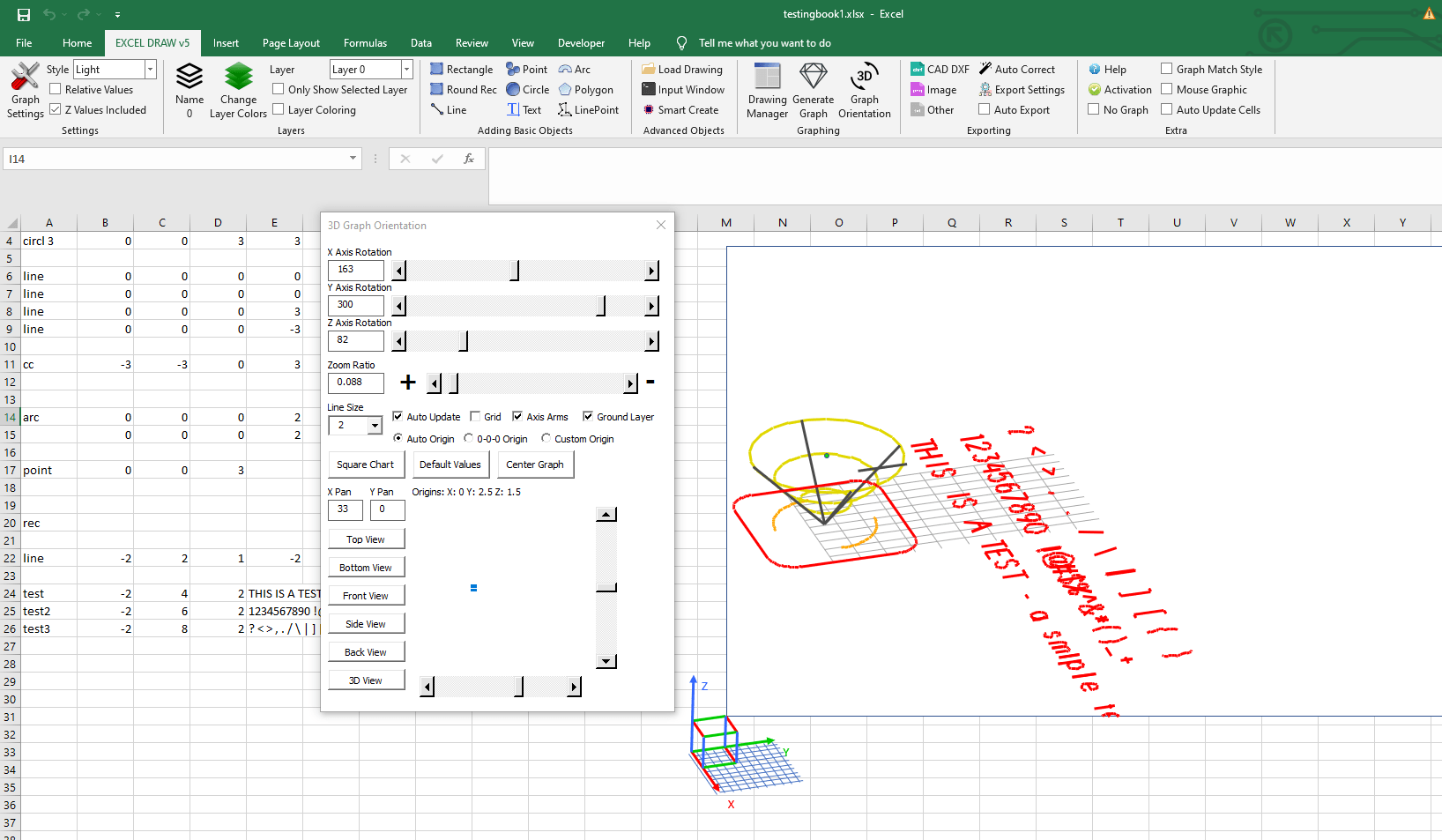
5. Exporting Your Drawing
Once your drawing is complete, you can export it in various formats including DXF, PDF, PNG, JPG, and more. This flexibility ensures that your drawings can be used across different platforms and applications.
Extra Tip: Automating with VBA
One of the powerful features of Excel Draw is its ability to integrate with VBA (Visual Basic for Applications). This allows users to automate repetitive tasks, such as creating regular design templates or exporting drawings to specific file formats. By leveraging VBA, you can significantly streamline your workflow and reduce manual effort.

Conclusion
If you’re looking to simplify the process of creating and sharing CAD drawings, Excel Draw is an excellent tool to consider. By integrating CAD capabilities directly within Microsoft Excel, it removes the need for specialized software and complex workflows.
For more detailed guidance on using Excel Draw, you can watch this tutorial video that walks through all its features step-by-step. Ready to give it a try? Download your trial of Excel Draw today and experience the ease of CAD drawing creation within Excel.
Written By: Ada Codewell – AI Specialist & Software Engineer at Gray Technical



















