
Excel Draw: The Game-Changer for CAD Work Within Excel
Written By: Ada Codewell – AI Specialist & Software Engineer at Gray Technical
Excel Draw: The Game-Changer for CAD Work Within Excel
If you’ve ever struggled with combining CAD drawings and Excel spreadsheets, you know the pain. Creating technical drawings in Excel is a challenge, especially when you need to share them with colleagues who might not have specialized CAD software. Thankfully, there’s a solution: Excel Draw. This powerful add-in transforms Microsoft Excel into a full-fledged CAD drawing tool without the need for AutoCAD. Let’s dive into how Excel Draw can solve this common problem and make your life easier.

Why This Problem Happens
The main issue arises because CAD software and spreadsheets are traditionally separate tools, each with its own strengths. Engineers, architects, and designers often need to create precise technical drawings (CAD) but also manage data in spreadsheets (Excel). Switching between these tools is cumbersome and time-consuming, leading to inefficiencies and potential errors. That’s why having a tool that bridges this gap is invaluable.
Step-by-Step Solution with Excel Draw

Step 1: Installation and Setup
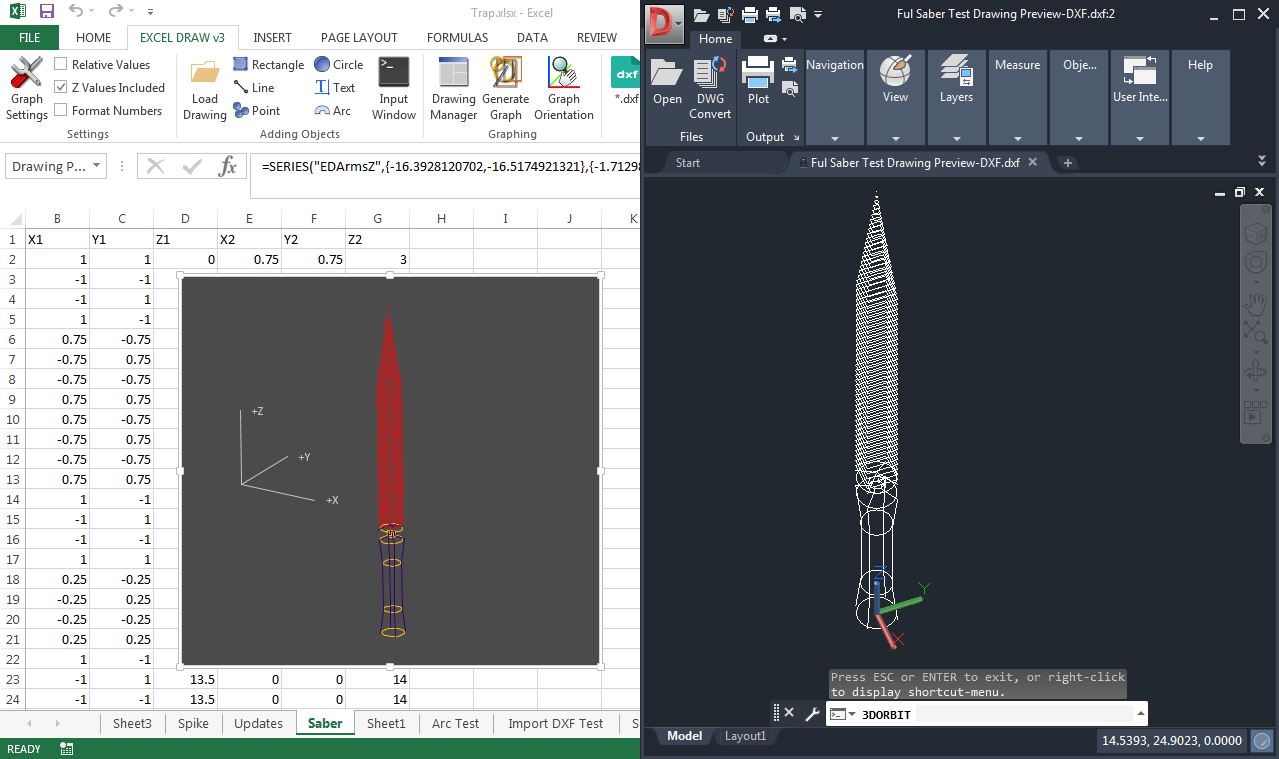
The first step is to install Excel Draw. The installation process is straightforward. Once installed, you’ll see a new tab in your Excel ribbon labeled “Excel Draw.” This tab contains all the tools you need to create and manage CAD drawings directly within Excel.
Step 2: Creating Your First Drawing
To create a drawing, start by selecting the type of object you want to add (e.g., lines, circles, rectangles). You can input data directly into Excel cells or use the Command Line Input feature for more complex inputs.
Step 3: Customizing Objects
Each object in Excel Draw is customizable. You can change colors, line widths, and other properties to suit your needs. This flexibility allows you to create detailed and precise drawings without leaving Excel.
Step 4: Managing Your Drawing
Use the built-in Drawing Manager to organize and modify your objects. You can select, remove, change layers, or delete data as needed. The Distance Calculator is also a handy tool for measuring distances between objects.
Step 5: Exporting and Sharing
Once your drawing is complete, you can export it in various formats, including DXF, PDF, PNG, and more. This makes it easy to share your drawings with colleagues or customers, even if they don’t have Excel Draw installed.
Real-World Examples

Example 1: Architectural Floor Plans
Architects often need to create detailed floor plans and share them with clients who may not have CAD software. With Excel Draw, architects can create these plans directly in Excel and export them as PDFs for easy sharing.
Example 2: Engineering Schematics
Engineers working on complex projects can use Excel Draw to create schematics and diagrams. The ability to automate tasks with VBA makes it easy to update drawings based on changing data.
Example 3: CNC Machine Programming
Manufacturers who use CNC machines can create and export DXF files directly from Excel Draw, streamlining the process from design to production.
Advanced Tips and Tricks
Automating with VBA
One of the most powerful features of Excel Draw is its ability to automate tasks using VBA. You can create custom macros to generate, modify, and export drawings based on your specific needs. This is particularly useful for repetitive tasks or complex projects.
Using Layers Effectively
Layers can help you organize your drawings more effectively. By assigning different objects to different layers, you can easily manage and edit your drawing without overwhelming yourself with too many details at once.
Conclusion

Excel Draw is a game-changer for anyone who needs to create CAD drawings within Excel. Its ability to integrate seamlessly with Excel, automate tasks with VBA, and export in multiple formats makes it an invaluable tool. Whether you’re an architect, engineer, or manufacturer, Excel Draw can streamline your workflow and save you time and resources.
Ready to take your CAD work to the next level? Try Excel Draw today and experience the difference for yourself.
Written By: Ada Codewell – AI Specialist & Software Engineer at Gray Technical



















