
Excel Draw: The Game Changer for CAD Work in Excel
Written By: Ada Codewell – AI Specialist & Software Engineer at Gray Technical
Excel Draw: The Game Changer for CAD Work in Excel
Are you tired of the constant back and forth between Excel and CAD software for your technical drawings? Do you wish there was an easier way to create, view, and share CAD drawings without needing specialized software or training? You’re not alone. Many professionals struggle with this exact problem, but there’s a solution that can make your life much simpler: Excel Draw.




Why This Problem Happens
The disconnect between Excel and CAD software arises from the fact that these two tools were designed for different purposes. Excel is fantastic for data analysis, spreadsheet calculations, and general productivity tasks. CAD software, on the other hand, is specialized for detailed technical drawings and precise engineering work. The problem comes when you need to combine these two worlds—perhaps for visualizing data or creating schematics within a familiar spreadsheet environment.
This disconnect leads to inefficiencies such as:
- Constantly switching between applications
- Manual data entry errors
- Incompatibility issues when sharing files with colleagues
- Time-consuming learning curves for specialized CAD software
3+ Real-World Examples
Example 1: Architectural Floor Plans
Imagine you’re an architect who needs to create detailed floor plans. Traditionally, you’d use CAD software to design the layout and then export it for client presentations or further modifications. With Excel Draw, you can create these floor plans directly within Excel, allowing your clients (who might not have CAD software) to view and interact with the drawings seamlessly.
Example 2: Engineering Schematics
As an engineer, you often need to create schematics that combine data analysis with visual representation. With Excel Draw, you can input your XYZ data directly into Excel and visualize it as a CAD drawing. This integration saves time and reduces errors from manual data entry.
Example 3: CNC Machine Programming
For those working with CNC machines, programming these machines often requires precise DXF files. Excel Draw allows you to create and export these DXF files directly from Excel, streamlining the process and ensuring accuracy.
Step-by-Step Solution
Step 1: Install Excel Draw
First, you’ll need to install Excel Draw. You can download a trial version from their website to test it out before committing.
Step 2: Load Your DXF File or Create New Data
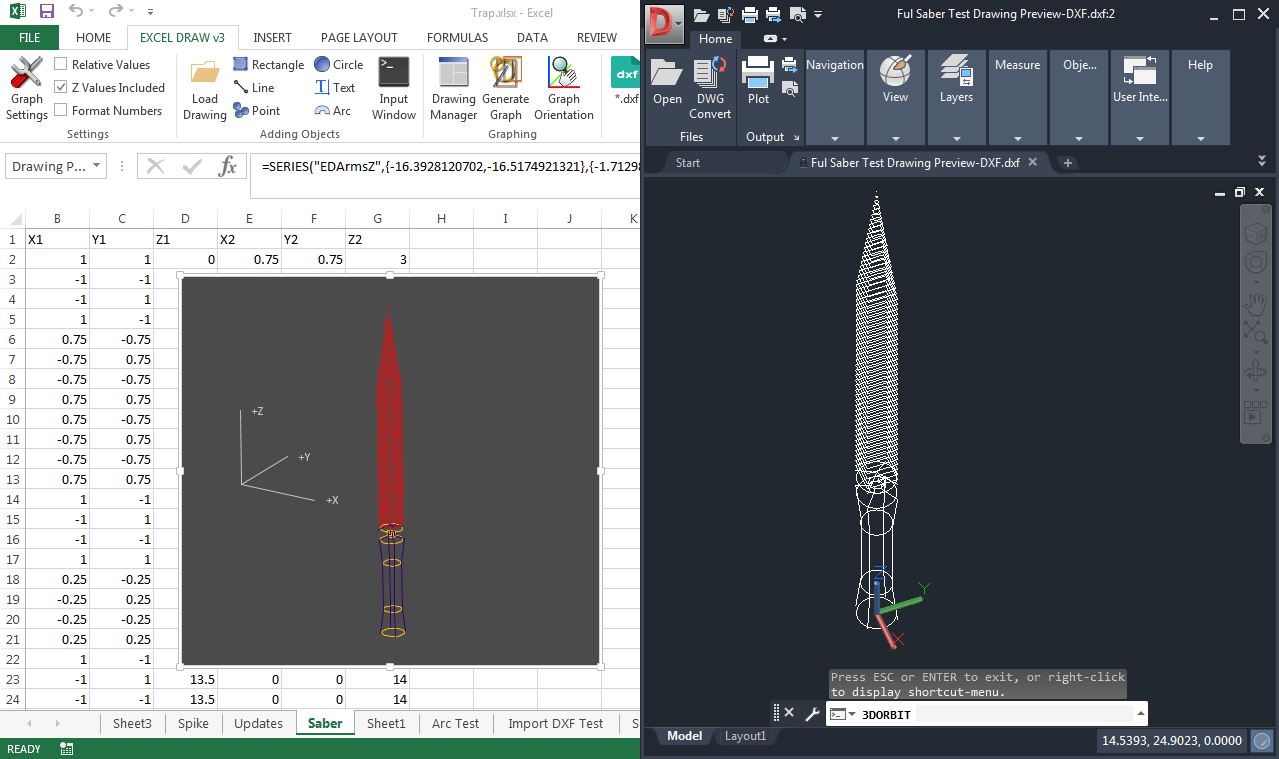
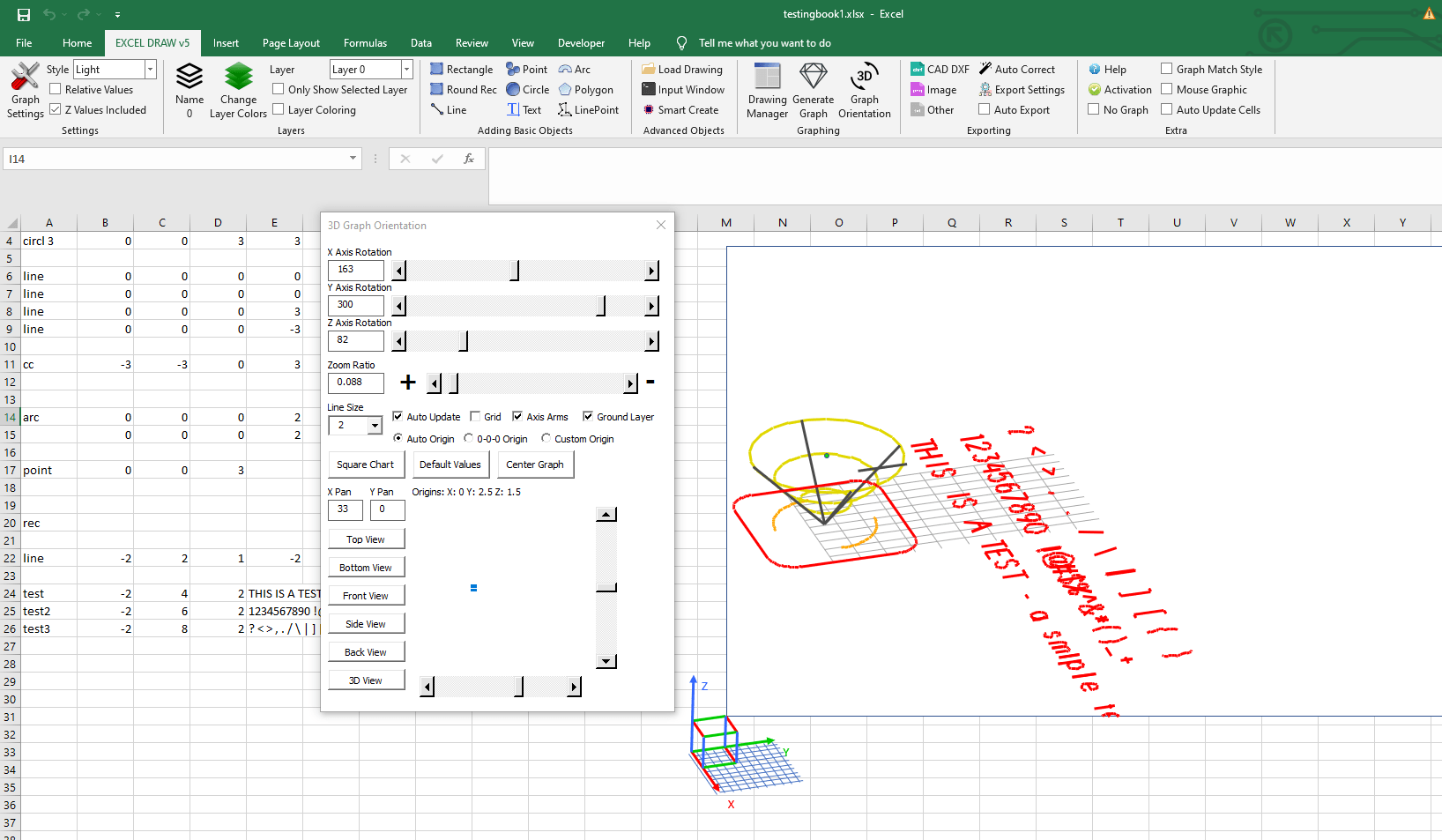
Once installed, you can either load an existing DXF file using the built-in DXF Reader GT or create new data directly in Excel. The interface is user-friendly and allows you to input various shapes such as lines, rectangles, circles, and text.
Step 3: Customize Your Drawing
Customize your drawing by adjusting colors, line widths, and other properties. You can also organize your objects using the built-in Drawing Manager, which helps you select, remove, or modify objects as needed.

Step 4: Export Your Drawing
After creating or modifying your drawing, you can export it in various formats such as DXF, PDF, PNG, JPG, and more. This flexibility ensures that you can share your drawings with anyone, regardless of their software capabilities.
Extra Tip: Automate with VBA
One of the standout features of Excel Draw is its support for VBA automation. If you have repetitive tasks or specific workflows, you can create custom VBA scripts to streamline your processes. This can save you a significant amount of time and reduce the risk of errors.
Conclusion
Excel Draw is a game-changer for anyone who needs to combine CAD work with the familiarity and versatility of Excel. Whether you’re an architect, engineer, or CNC programmer, this tool can save you time, reduce errors, and make your workflow more efficient. Try it out today and see the difference it can make in your projects.
Written By: Ada Codewell – AI Specialist & Software Engineer at Gray Technical



















