
Creating CAD Drawings in Excel: The Game Changer for Easy Collaboration
Written By: Ada Codewell – AI Specialist & Software Engineer at Gray Technical
Creating CAD Drawings in Excel: The Game Changer for Easy Collaboration
Are you tired of the hassle and cost associated with creating and sharing CAD drawings? What if I told you that you can now create, view, and share CAD drawings directly within Microsoft Excel? Say goodbye to expensive CAD software and hello to Excel Draw.




Why Collaboration on CAD Drawings is a Pain Point
The traditional process of creating and sharing CAD drawings can be cumbersome and inefficient. Engineers and designers often find themselves grappling with several challenges:
- High cost of CAD software licenses.
- Incompatibility between different CAD software versions.
- Difficulty in sharing and collaborating on CAD files across teams.
The Solution: Excel Draw for CAD-Style Drawings
Excel Draw is a powerful add-in for Microsoft Excel that allows you to create, view, and export CAD-style drawings directly within the familiar Excel environment. With Excel Draw, anyone with Excel can view your drawings without needing any additional software.

Step-by-Step Guide to Creating CAD Drawings in Excel
Let’s walk through the process of creating a simple CAD drawing using Excel Draw:
Step 1: Install Excel Draw
To get started, visit the Excel Draw product page and download the trial version or purchase a license. Follow the installation instructions to add the Excel Draw ribbon to your Microsoft Excel application.
Step 2: Load or Create Data
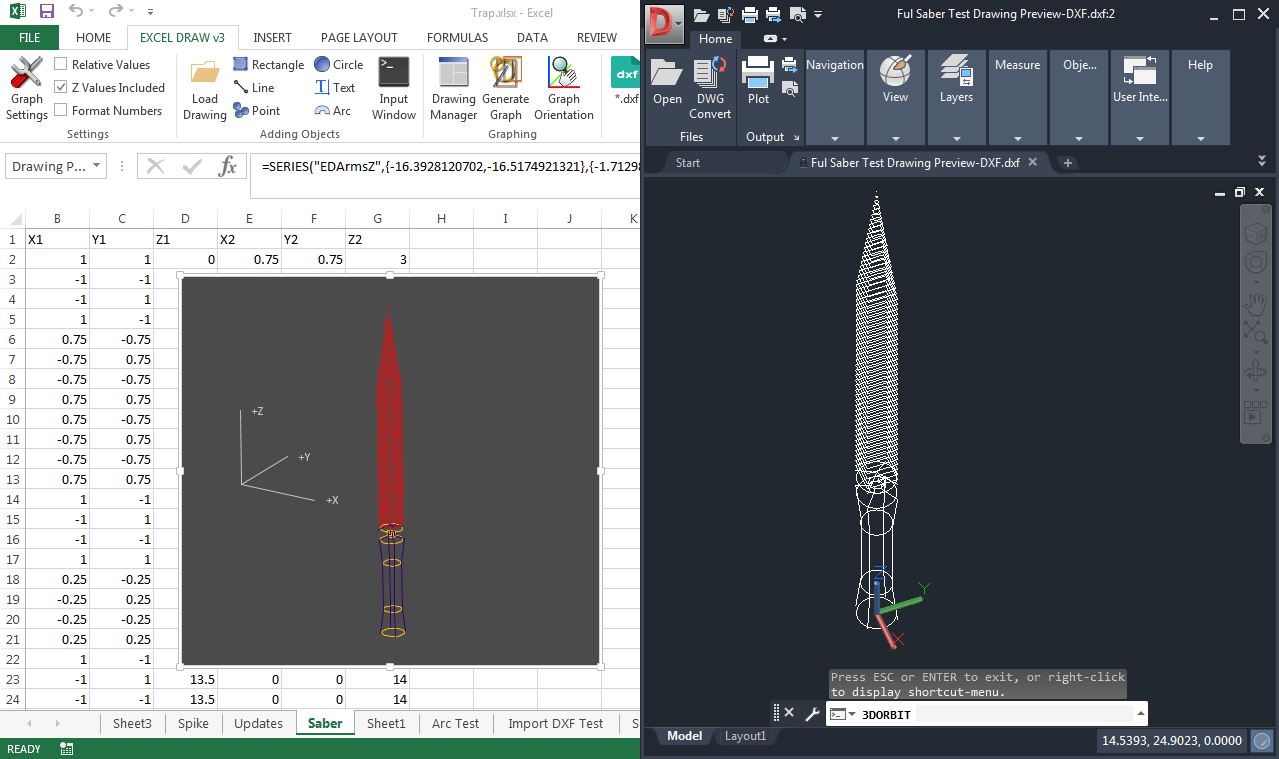
Excel Draw allows you to load a DXF file, copy XYZ data directly, or create data on the spot inside your Excel spreadsheet. For this example, we’ll create a simple rectangle.
Step 3: Adding Shapes
Using the Excel Draw toolbar, select the ‘Rectangle’ tool and draw your rectangle on the canvas. You can specify the dimensions directly in the properties box that appears.
Step 4: Customizing Objects
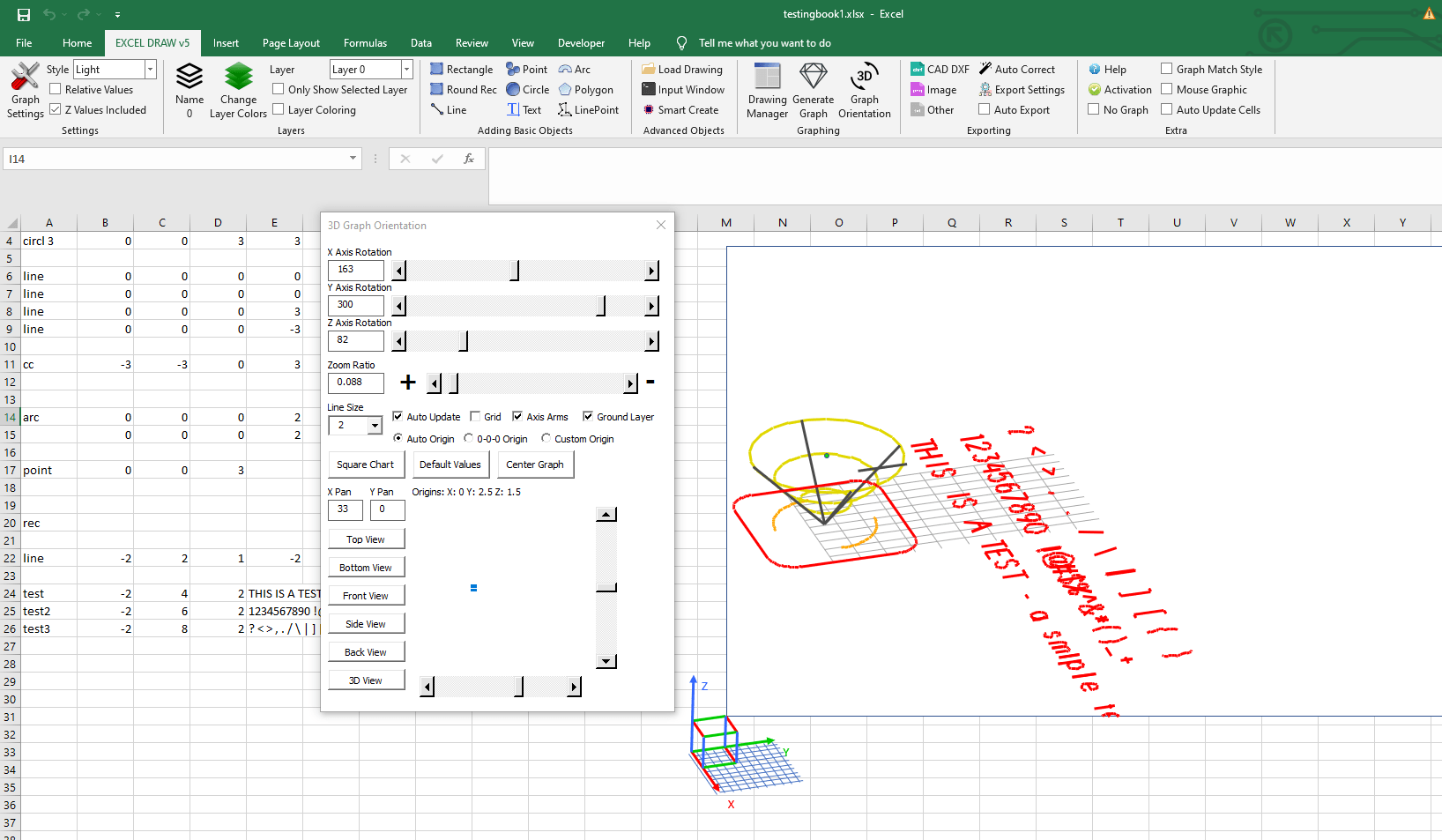
All objects created with Excel Draw are fully customizable. You can change colors, line width, and even add text annotations to your drawing.
Step 5: Saving and Sharing
Once your drawing is complete, you can save it as a DXF file or export it in various formats such as PDF, PNG, JPG, etc. This makes it easy to share your drawings with colleagues who may not have Excel Draw installed.
Real-World Examples
Excel Draw’s versatility makes it suitable for various industries and applications:
Example 1: Architecture and Engineering
Architects and engineers can create floor plans, site layouts, and other technical drawings directly in Excel. This enables seamless collaboration with clients and contractors who may not have access to expensive CAD software.
Example 2: Manufacturing
In manufacturing, Excel Draw can be used to create schematics for machinery or assembly instructions. The ability to export drawings in various formats ensures compatibility with different systems and devices.
Example 3: Education
Educators can use Excel Draw to create visual aids for teaching CAD concepts without the need for costly software licenses. Students can also practice creating and editing drawings using the familiar Excel interface.
Advanced Tips and Tricks
Excel Draw offers advanced features that can enhance your productivity:
Automation with VBA
For power users, Excel Draw includes a VBA API that allows you to automate repetitive tasks. You can create macros to generate drawings based on data inputs or export drawings in bulk.

3D Visualization
With Excel Draw, you can create and visualize 3D objects directly within Excel. This feature is particularly useful for projects that require a 3D perspective, such as architectural designs or mechanical parts.
Conclusion
Excel Draw is a game-changer for anyone involved in creating and sharing CAD drawings. By leveraging the familiar Excel interface, it makes CAD work accessible to a wider audience while reducing costs and enhancing collaboration. Whether you’re an architect, engineer, educator, or student, Excel Draw offers a versatile solution that fits your needs.
Ready to revolutionize how you handle CAD drawings? Try Excel Draw today and experience the difference for yourself!
Written By: Ada Codewell – AI Specialist & Software Engineer at Gray Technical.



















